WHMCS User Guide
After enabling protection, you can use the plugin in the same way as users of the main Blackwall platform. All data is automatically synchronized with your Blackwall account. Apart from the appearance of the plugin's user interface, the functionality is largely identical to your Blackwall account.
Purchase and set up plugin
Below is a guide for purchasing and setting up the Blackwall product through WHMCS:
-
Log in to the WHMCS client area.
- From the top navbar, click the Accounts dropdown.
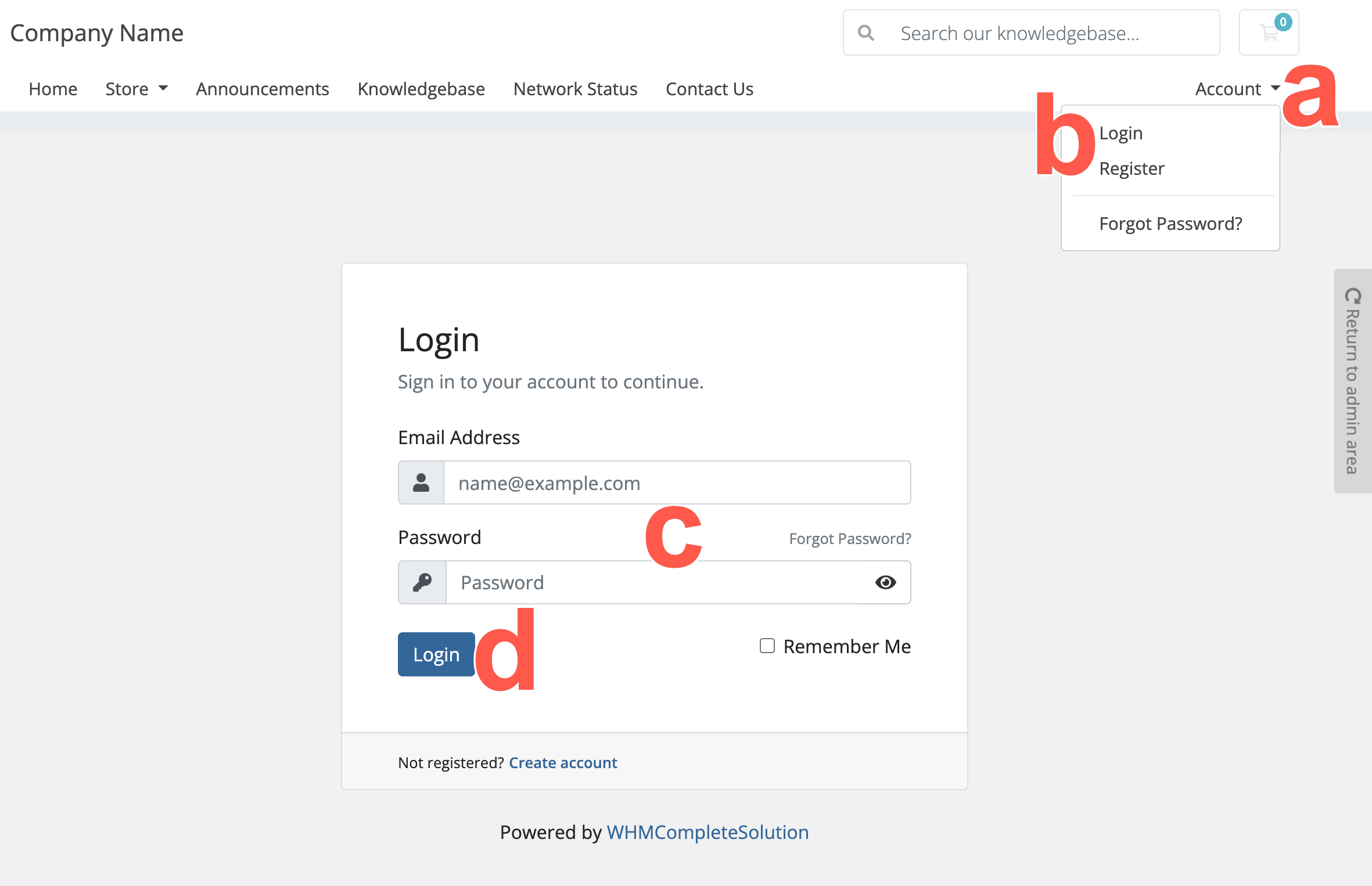 .
. - From the dropdown menu displayed, select Login.
- Type your username (your email address) and password.
- Click Login.
- From the top navbar, click the Accounts dropdown.
-
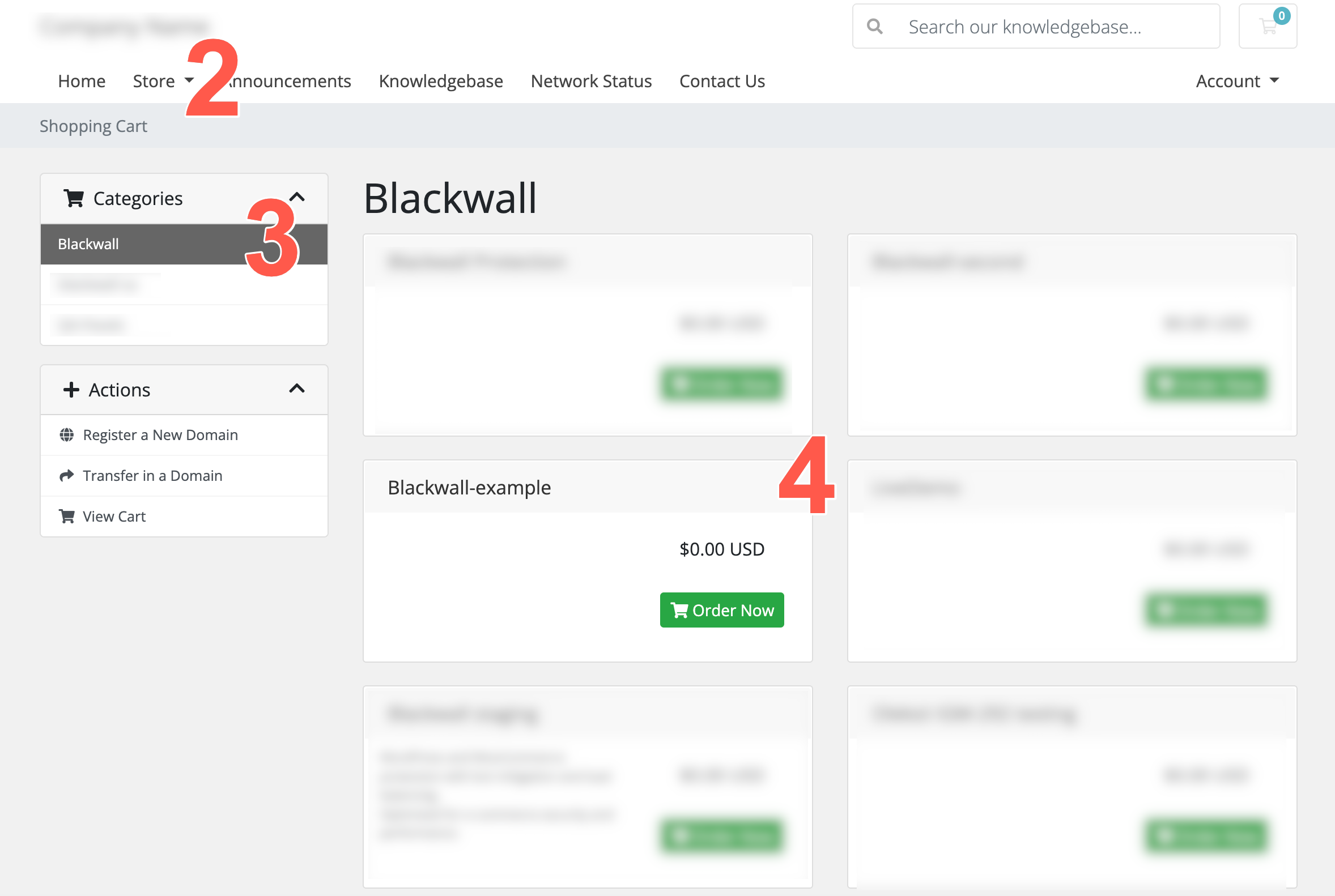
From the navbar menu, click Store.
 .
. -
Select the category that contains the Blackwall product.
For example: Blackwall.
-
From the widgets displayed, click the Blackwall product that you want to purchase.
-
On the Choose a Domain page that displays, choose the domain that you want to protect, by selecting one of the available domain options:
- Register a new domain: Select this option if you want to register a new domain as part of the order.
- Transfer your domain from another registrar: Select this option if you want to move an existing domain into this WHMCS account.
- I will use my existing domain and update my nameservers: Select this option if you already own the domain and only want to use it with Blackwall protection.
-
Choose the domain that you want to protect, by selecting one of the following three options.
Use this option if you want to register a new domain as part of the Blackwall order:
- Select the Register a new domain radio button.
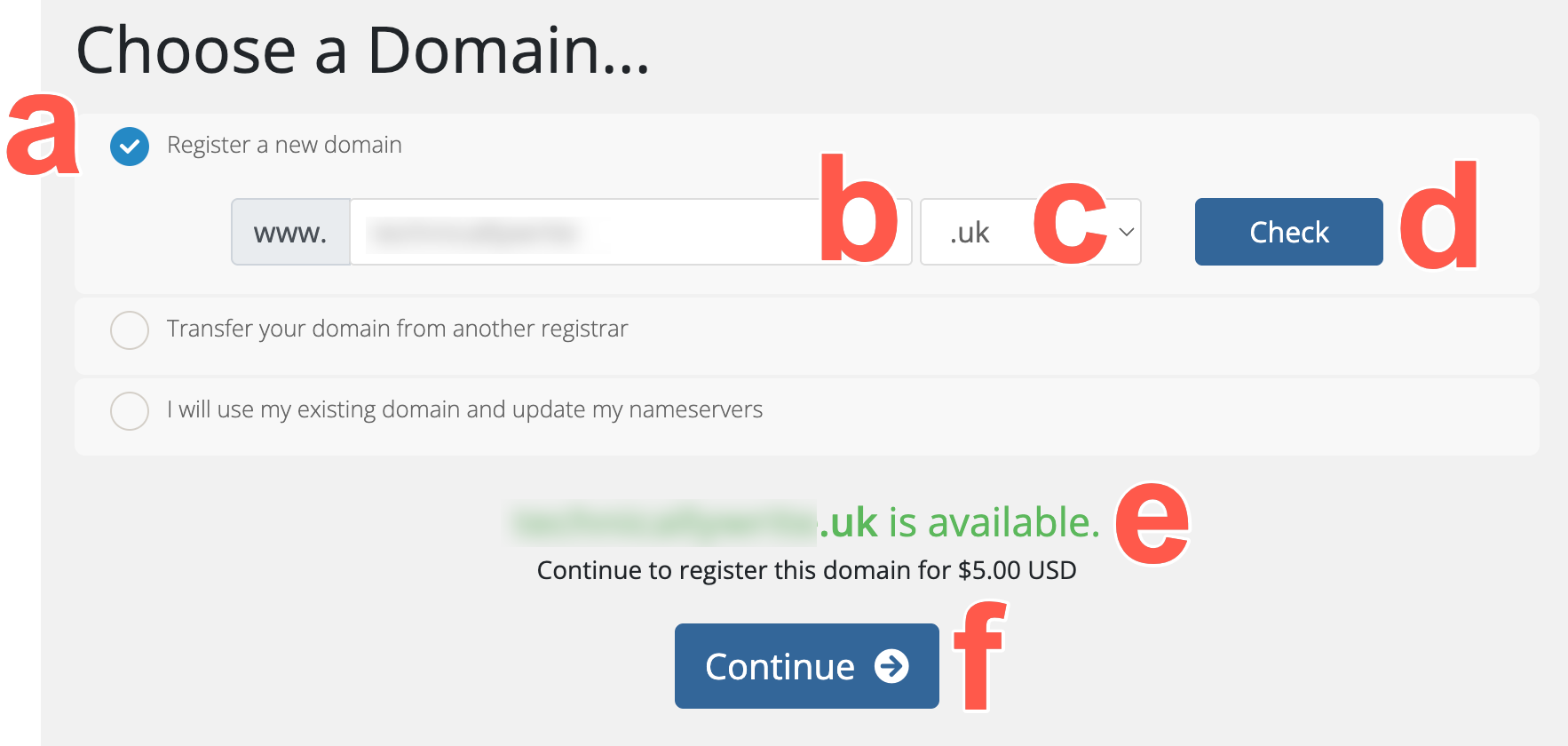 .
. - Enter the domain name that you want to register.
-
Select the required domain extension from the dropdown menu.
For example:
.uk -
Click Check.
- Check that the domain is available.
- If available, click Continue, but if the domain is not available, repeat these steps again for a different domain.
Use this option if you want to transfer an existing domain from another registrar into this WHMCS account.
- Select the Transfer your domain from another registrar radio button.
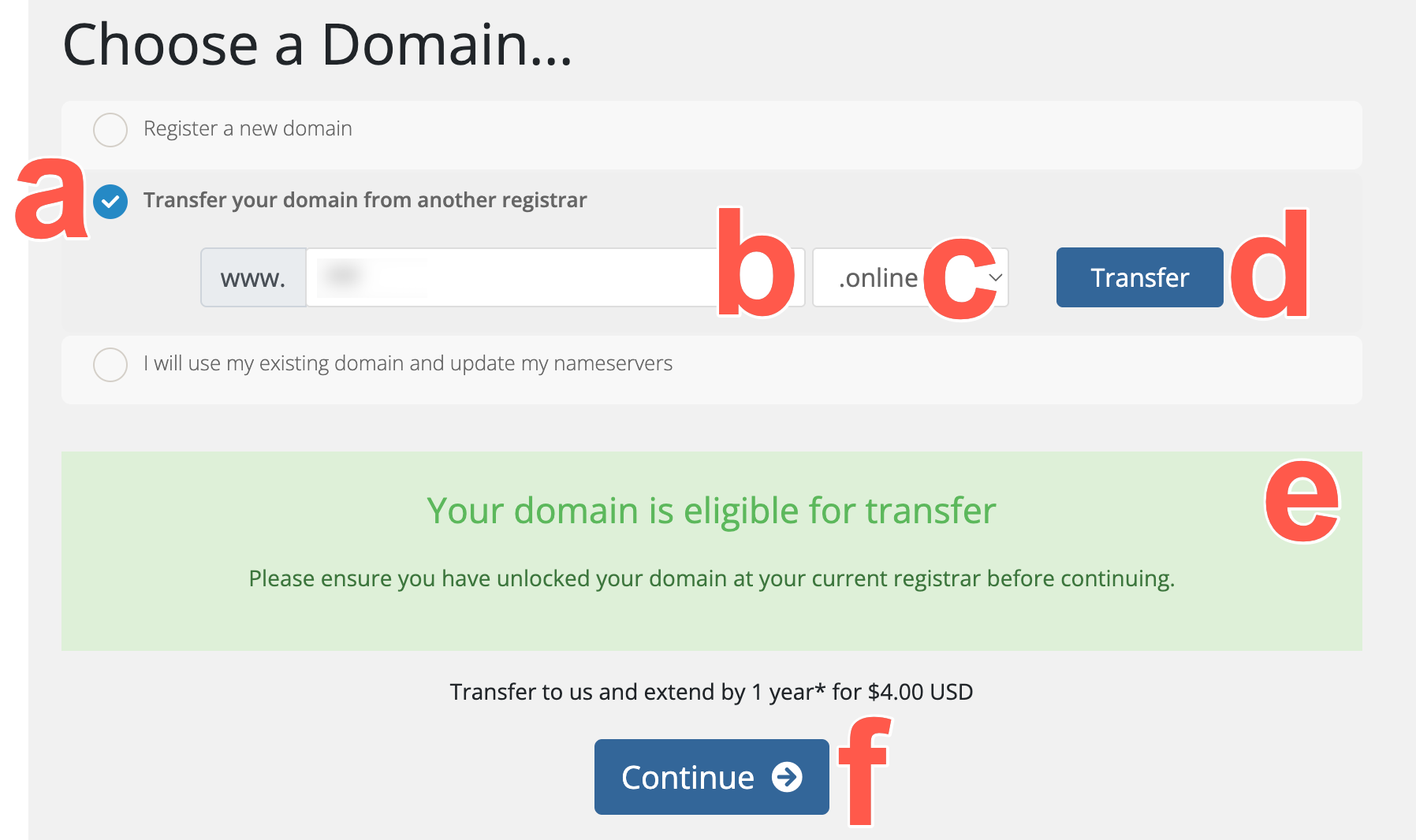 .
. - Enter the domain name that you want to transfer.
-
Select the domain extension from the dropdown menu.
For example:
.uk -
Click Transfer.
-
Enter the transfer authorisation code if WHMCS requests it.
This may also be called an EPP code, transfer code, or authorisation code, depending on the registrar.
-
Click Continue.
Use this option if you already own the domain and only want to use it with Blackwall protection.
- Select the I will use my existing domain and update my nameservers radio button.
- Enter the domain name that you want to protect with Blackwall.
- Click Use.
- Click Continue.
- Select the Register a new domain radio button.
-
On the Review & Checkout page:
- Review the product order summary.
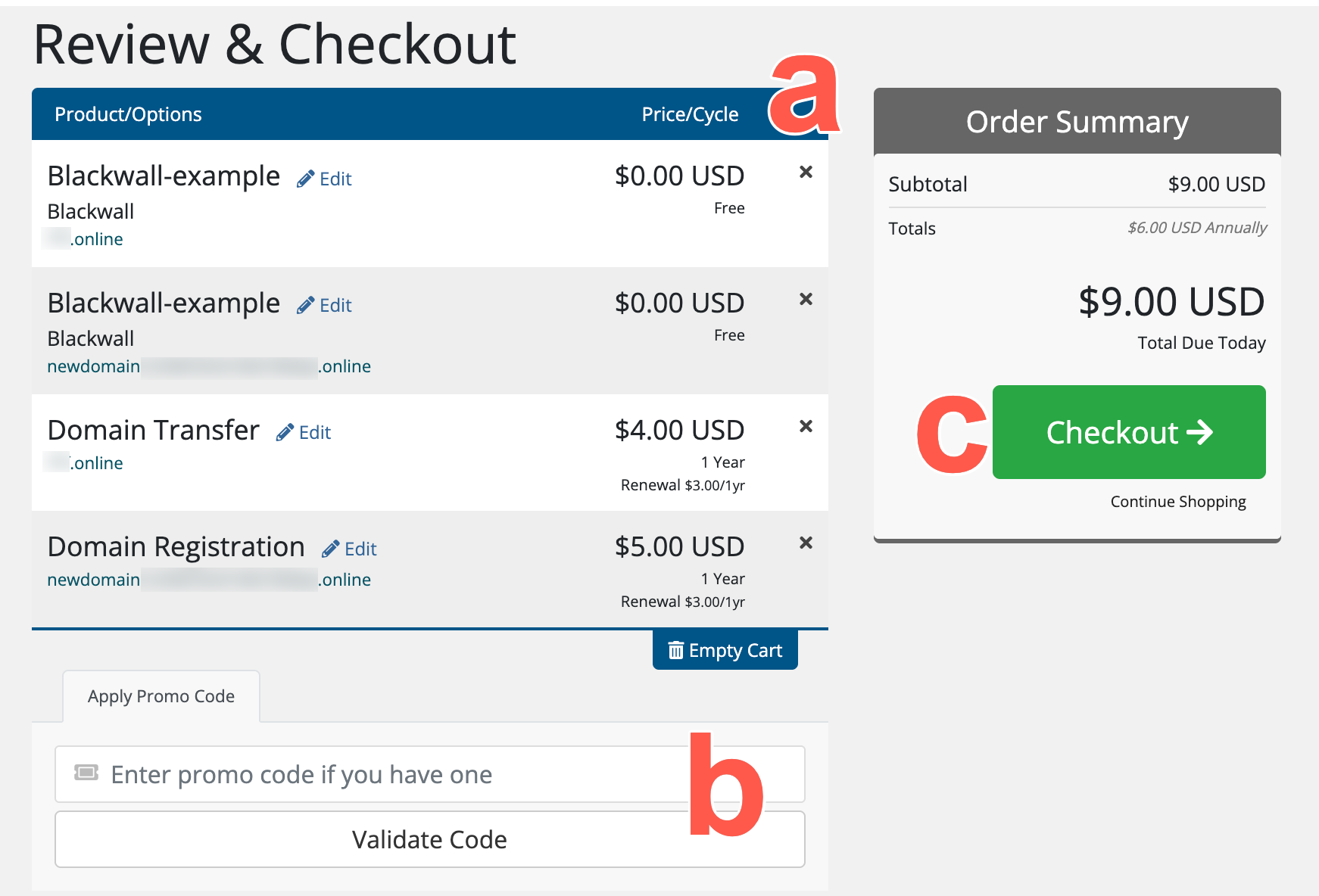 .
. - Apply a promotional code if you have one and click Validate Code.
- Click Checkout.
- Review the product order summary.
- Select your preferred payment method and enter your billing details.
- If prompted, create a strong password for your account.
- Accept the terms of service, if prompted.
- Click Complete Order.
- Complete payment using the selected payment method.
- Update the domain’s DNS or nameserver settings:
- After the order is complete, update the domain’s DNS or nameserver settings as instructed by your service provider.
- Wait for the DNS changes to propagate.
- Return to the WHMCS client area and confirm that the Blackwall product is active.
Navigating the plugin
- Log into your WHMCS account.
- From the top navbar, click the Accounts dropdown.
.
- From the dropdown menu displayed, select Login.
- Type your username (your email address) and password.
- Click Login.
- From the top navbar, click the Accounts dropdown.
- Scroll the list of services displayed until you find the one that you are looking for.
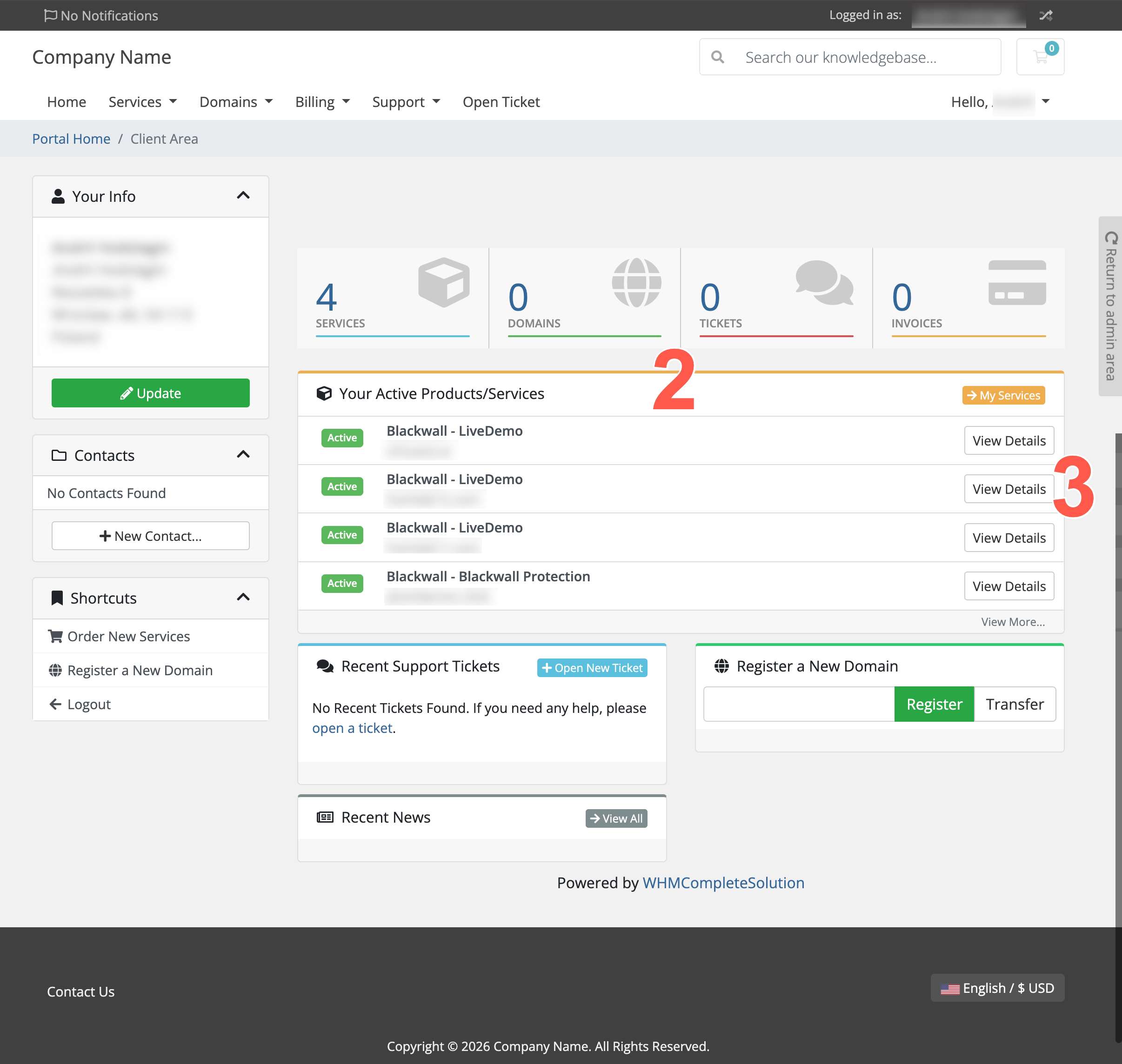 .
. - Click the View Details button that corresponds with your desired domain listing.
-
When the Product Details page displays for your selected product, you have various options available.
- This panel displays the Blackwall service status for the product. In this example, the status is ACTIVE.
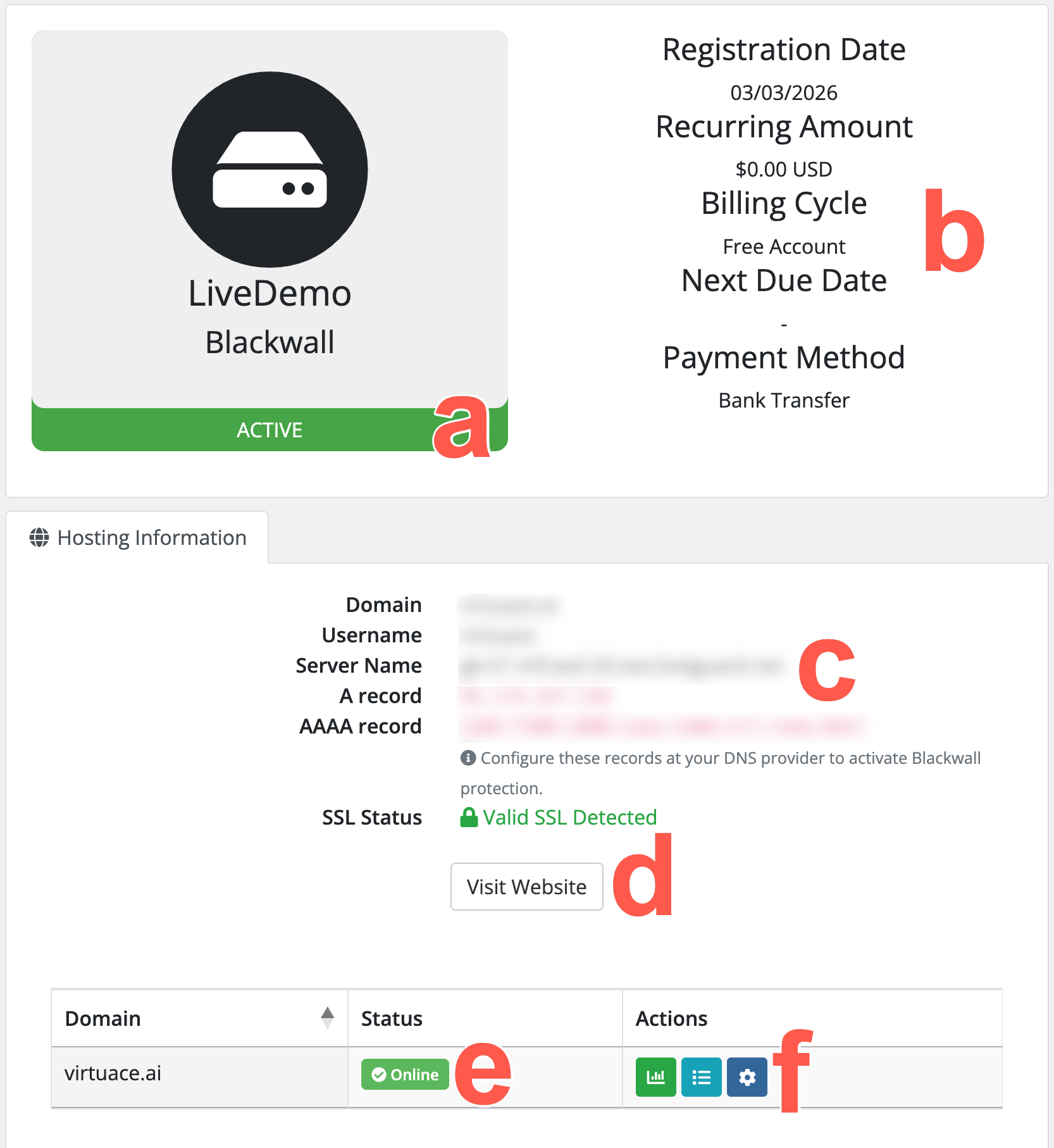 .
. - This panel is managed by WHMCS. It displays billing information associated with the service, including:
- Registration Date – The date that the service was created.
- Recurring Amount – The billing cost for the service.
- Billing Cycle – The billing plan associated with the service; e.g. Free Account, Monthly, Yearly.
- Next Due Date – The next billing date (if applicable).
- Payment Method – The payment method used for the service.
- The Hosting Information panel displays technical details, core infrastructure, and SSL details for the protected website, including:
- Domain – The domain protected by Blackwall.
- Username – The WHMCS service username.
- Server Name – The server handling the service.
- IP Address – The associated server IP address.
- SSL Status – This indicates whether a valid SSL certificate is detected.
- SSL Start Date - The date when the SSL/TLS certificate for the domain became valid.
- SSL Expiry Date - The date when the SSL/TLS certificate for the domain expires.
- SSL Issuer Name - This names the Certificate Authority (CA) that issued the SSL/TLS certificate.
- The Visit Website button provides a direct link to the protected website, opening in a new browser tab to enable users to quickly access their site, without exiting WHMCS.
- This displays the current operational status of the domain protected by Blackwall. In this example, the domain status is Online, which means that the domain is currently active and reachable.
- The bottom panel provides management controls for the domain’s Blackwall service. These action buttons enable users to manage and monitor their Blackwall protection via the WHMCS client interface:
- Statistics - Viewing traffic or protection statistics. Refer to Statistics documentation.
- Events - In the context of the Blackwall platform, Events are actions, activities, or occurrences that the platform tracks and analyzes to determine whether traffic is generated by a human or a bot. Refer to Events documentation.
- Settings - Access service settings and domain configuration details, including configuration for Rules, Rulesets, and Custom Rules. Refer to the WHMCS Settings documentation
- This panel displays the Blackwall service status for the product. In this example, the status is ACTIVE.
Configure Blackwall Settings
The Settings page provides controls to activate or adjust performance, caching, and security options, helping you to enhance website protection and improve user experience.
- Log into your WHMCS account.
- From the top navbar, click the Accounts dropdown.
.
- From the dropdown menu displayed, select Login.
- Type your username (your email address) and password.
- Click Login.
- From the top navbar, click the Accounts dropdown.
- Scroll the list of services displayed until you find the one that you are looking for.
- Click the View Details button that corresponds with your desired domain listing.
- When the Product Details page displays for your selected product, scroll to the Actions section.
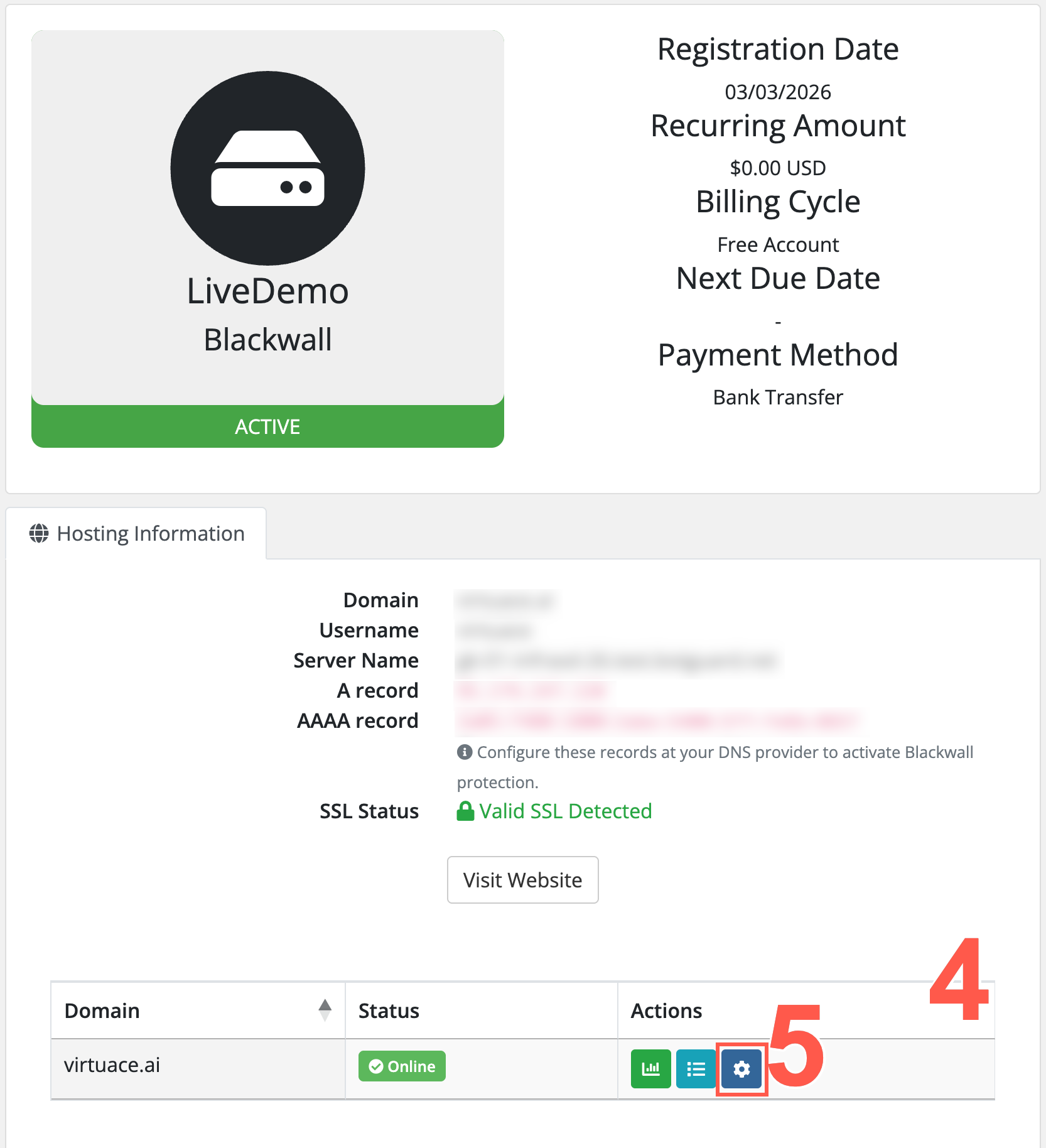
- Click Settings.
-
In the Settings window, click one of the available tabs to review and update your domain settings.
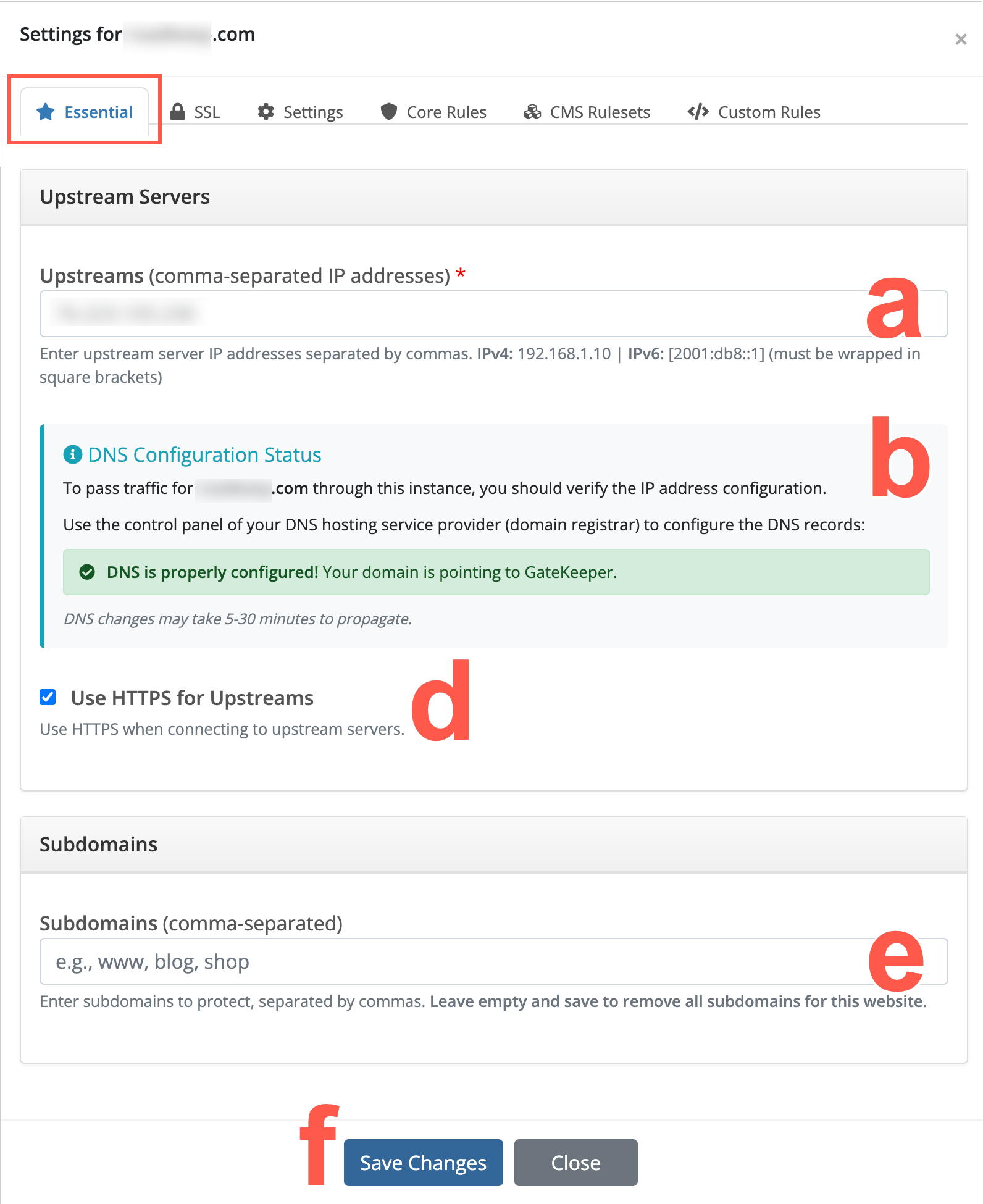
Use the Essential tab to configure the origin server, confirm DNS status, choose whether Blackwall connects to the origin over HTTPS, and define any subdomains that should also be protected.
-
In Upstreams, enter the upstream server IP address that Blackwall should forward traffic to.
The upstream server is usually the origin web server that hosts the website. Enter multiple upstream IP addresses as a comma-separated list. For example:
For IPv6 addresses, wrap the address in square brackets. For example:
-
Review the DNS Configuration Status panel.
This panel shows the DNS records that must be configured so that traffic for the domain routes through Blackwall. If the DNS records are configured correctly, a confirmation message displays:
If the DNS records are not configured correctly, follow the instructions shown in the DNS Configuration Status panel. You may need to log in to the control panel for your DNS hosting provider or domain registrar and add or update the required DNS records.
-
Wait for DNS changes to propagate.
DNS changes may take 5–30 minutes to propagate, although this can vary depending on your DNS provider and TTL settings.
-
Select Use HTTPS for Upstreams if Blackwall should connect to the upstream server over HTTPS. Clear this checkbox if Blackwall should connect to the upstream server over HTTP.
-
In Subdomains, enter any subdomains that you want Blackwall to protect. Enter multiple subdomains as a comma-separated list. For example:
Leave this field empty and save the form if you want to remove all subdomains for this website.
-
Click Save Changes.
-
Confirm that the updated configuration is saved successfully.
Use the SSL tab to configure the SSL certificate that Blackwall uses for the protected domain.
- In the Issuer Certificate field, paste the certificate authority or intermediate certificate. The certificate must be PEM encoded and include the full certificate block.
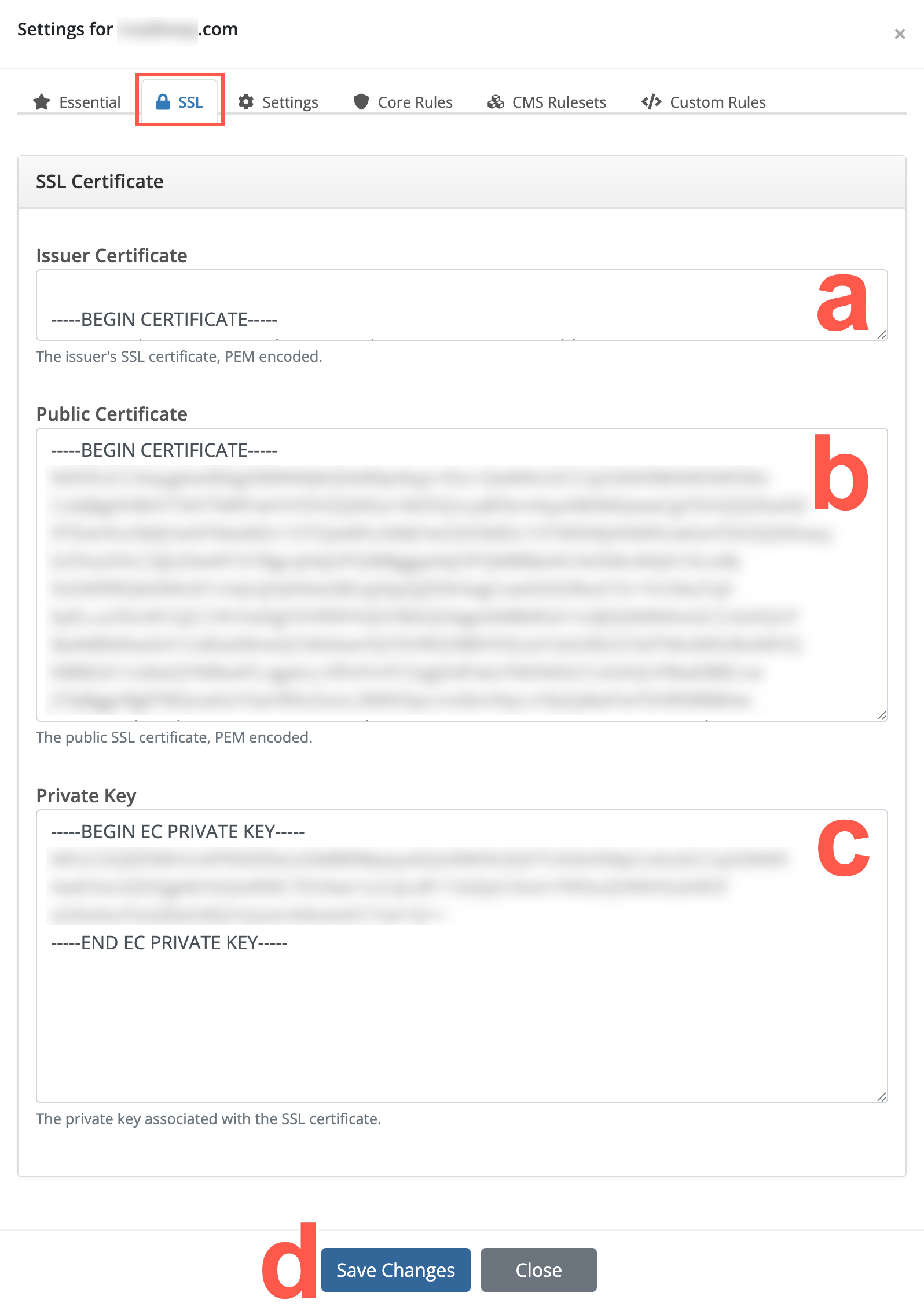
- In Public Certificate, paste the public SSL certificate for the domain. The certificate must be PEM encoded and include the full certificate block.
- In Private Key, paste the private key that corresponds to the public SSL certificate. The private key must match the public certificate and include the full private key block.
- Click Save Changes.
- Confirm that the updated SSL configuration is saved successfully.
Note
Confirm that the certificate, issuer certificate, and private key are correct. The SSL configuration will not work if the private key does not match the public certificate, or if the certificate chain is incomplete.
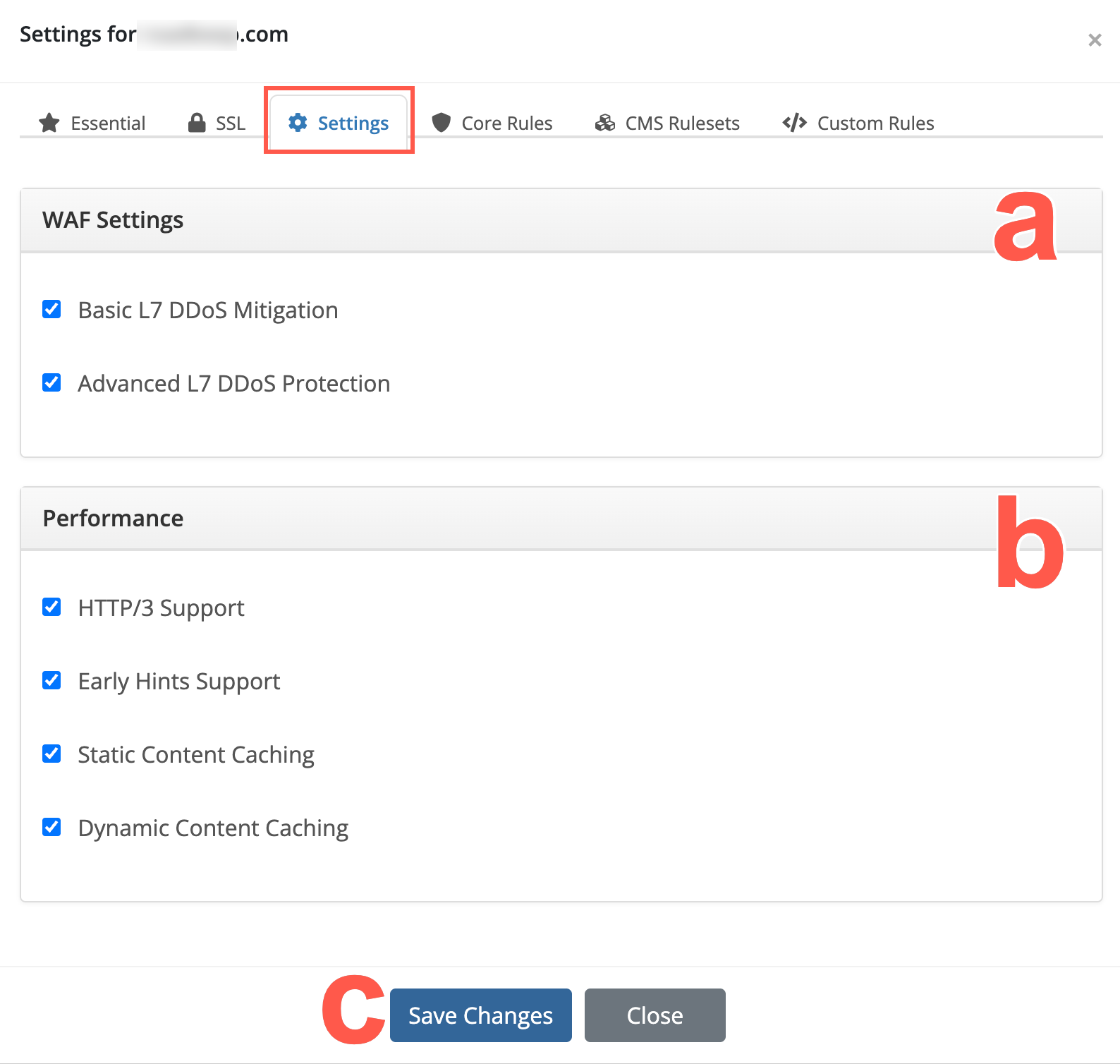
Use the Settings tab to enable or disable WAF and performance features for the protected domain.
-
In WAF Settings, select the protection options that you want to enable:
- Basic L7 DDoS Mitigation: Enables basic Layer 7 DDoS mitigation for the protected domain by limiting the number of simultaneous connections and the rate of requests from a single IP to help prevent volumetric or application-layer DDoS floods.
- Advanced L7 DDoS Protection: Enables additional Layer 7 DDoS protection for more advanced application-layer attacks. If enabled, GateKeeper will block attacking IPs at the firewall level for the entire cluster—returning a TCP RST or UDP rejection instead of serving HTTP 403 pages. Use this only if your site has experienced large-scale DDoS events.
-
In Performance, select the performance options that you want to enable:
- HTTP/3 Support: Enables HTTP/3 support for compatible browsers and clients. GateKeeper will speak HTTP/3 (QUIC/UDP) to compatible clients, improving performance on modern browsers and mobile devices. Leave unchecked if you need to disable HTTP/3 for compatibility or DDoS concerns.
- Early Hints Support: Allows GateKeeper to send HTTP 103 “Early Hints” responses during the initial TLS handshake, so that browsers can start preloading resources (e.g., CSS/JS) before the final HTML is delivered. This improves load times, leading to a faster browsing experience.
- Static Content Caching: If checked, GateKeeper caches images, CSS, JavaScript, and other static files locally on the edge. This speeds up asset delivery and reduces load on your origin server.
- Dynamic Content Caching: If checked, GateKeeper also caches HTML pages and other 'dynamic' content for a configurable short period. Use with caution: caching dynamic content may cause delays in showing newly published data (e.g., blog posts, user-specific pages).
-
Click Save Changes.
- Confirm that the updated settings are saved successfully.
Configure the Core Rules tab to control how Blackwall handles common categories of traffic for the protected domain.
-
- Grant access
- Deny access
- Use CAPTCHA (only available on some rules)
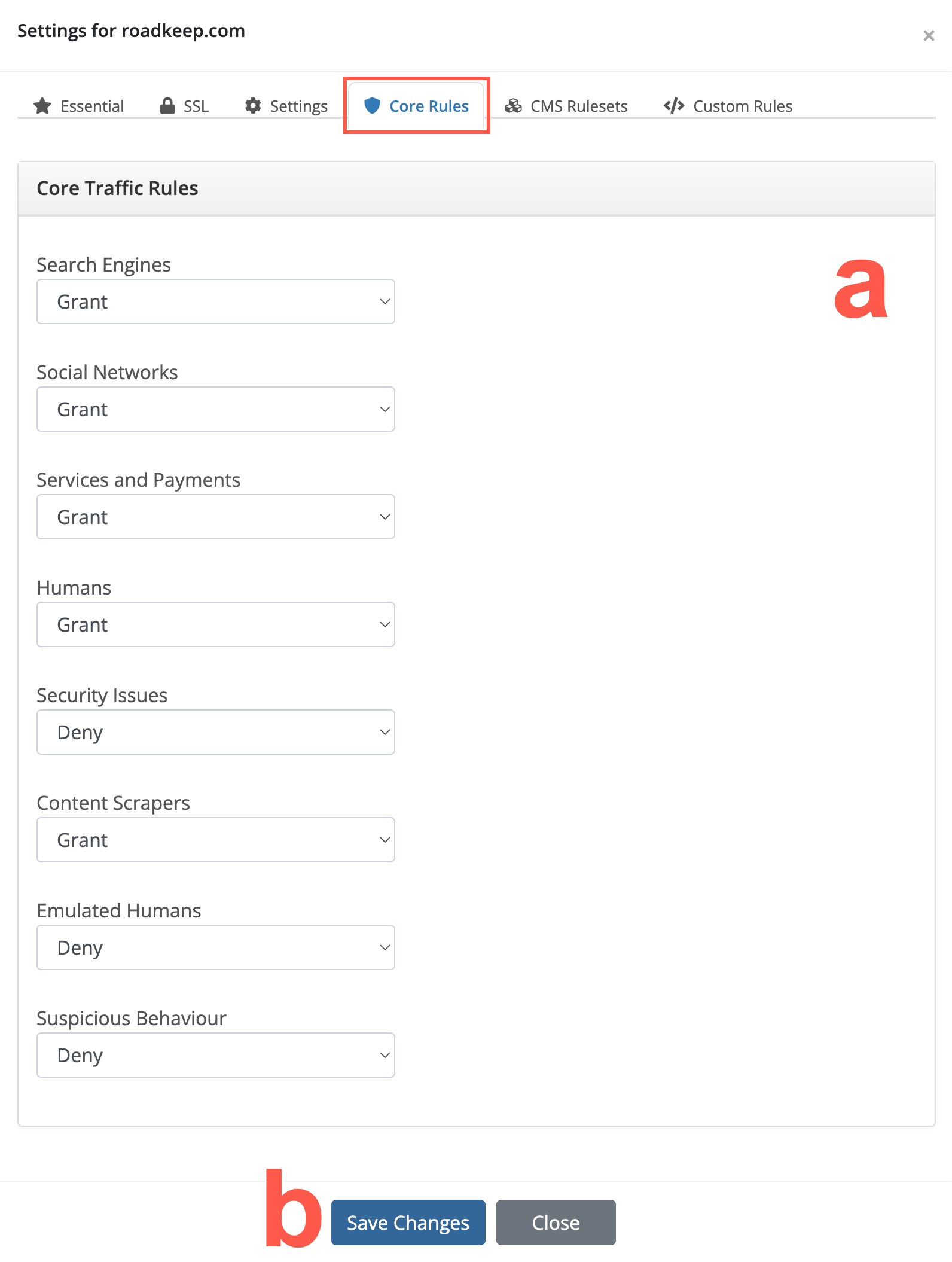
From the eight core rules displayed, locate the rule that you wish to modify. For the rule that you choose to modify, select a checkbox that corresponds to your desired behaviour. The available checkboxes are:
Description of Blackwall core rules
We recommend that you grant access to the first four:
-
Search Engines - Search engine crawlers such as Google, Bing, Yahoo, and other indexing services that scan websites to discover and rank content in search results. These bots are generally considered trusted traffic and are important for SEO visibility, search discoverability, and content indexing. Administrators can choose to allow or deny access depending on business or security requirements.
-
Social Networks - Bots and crawlers operated by social media platforms such as Facebook, X (Twitter), LinkedIn, and others. These services typically access websites to generate link previews, retrieve metadata, or analyse shared content. Allowing these visitors helps ensure correct rendering of shared links and social media integrations.
-
Services and Payments - Automated traffic originating from recognised cloud-based services, infrastructure providers, or monitoring platforms. This category may include uptime monitoring tools, performance scanners, analytics platforms, and other legitimate cloud-hosted services. Depending on your environment, these services may be required for monitoring, integrations, or operational visibility.
-
Humans - Typical human visitors accessing the website through desktop browsers, mobile devices, or office networks. This category represents normal end-user traffic and is generally expected to have unrestricted access to website resources. Additional protections, such as content encryption, can be applied to secure content delivery and reduce automated analysis of sensitive page content.
We recommend that you deny access to the last four:
-
Security Issues - Visitors identified as potentially malicious or associated with abusive, hostile, or suspicious activity. This may include hackers, vulnerability scanners, exploit frameworks, credential-stuffing tools, or automated systems attempting to probe or attack the website. Blocking these visitors helps reduce security risks, prevent reconnaissance activity, and protect application resources from abuse.
-
Content Scrapers - Automation tools designed to collect, copy, analyse, or archive website content at scale. These visitors are commonly associated with data scraping, competitive intelligence gathering, AI dataset collection, or automated content harvesting. Depending on business requirements, administrators may choose to block these visitors, challenge them with CAPTCHA, or apply content encryption to help protect sensitive or proprietary content.
-
Emulated Humans - Advanced automation frameworks and next-generation bots that attempt to mimic legitimate browser behaviour in order to bypass traditional bot detection mechanisms. These visitors may simulate mouse movement, browser execution, session handling, or other human-like interactions. Because these bots are often associated with credential abuse, scraping, or automated attacks, they typically require stricter mitigation measures such as CAPTCHA enforcement, encryption, or access denial.
-
Suspicious Behaviour - Visitors exhibiting unusual, abnormal, or potentially abusive behaviour patterns detected by Blackwall’s analysis engine. This category may include excessive request rates, behavioural anomalies, suspicious navigation patterns, or activity commonly associated with automated abuse or account compromise attempts. Administrators can apply additional protections such as CAPTCHA challenges, encryption, or outright blocking to reduce the risk posed by suspicious traffic.
-
Click OK to save your changes.
Default Core Rule settings
Blackwall's Core Rule settings in Plesk are initially all set to Grant access to allow all traffic by default. Make sure to change these rules to best suit your needs.
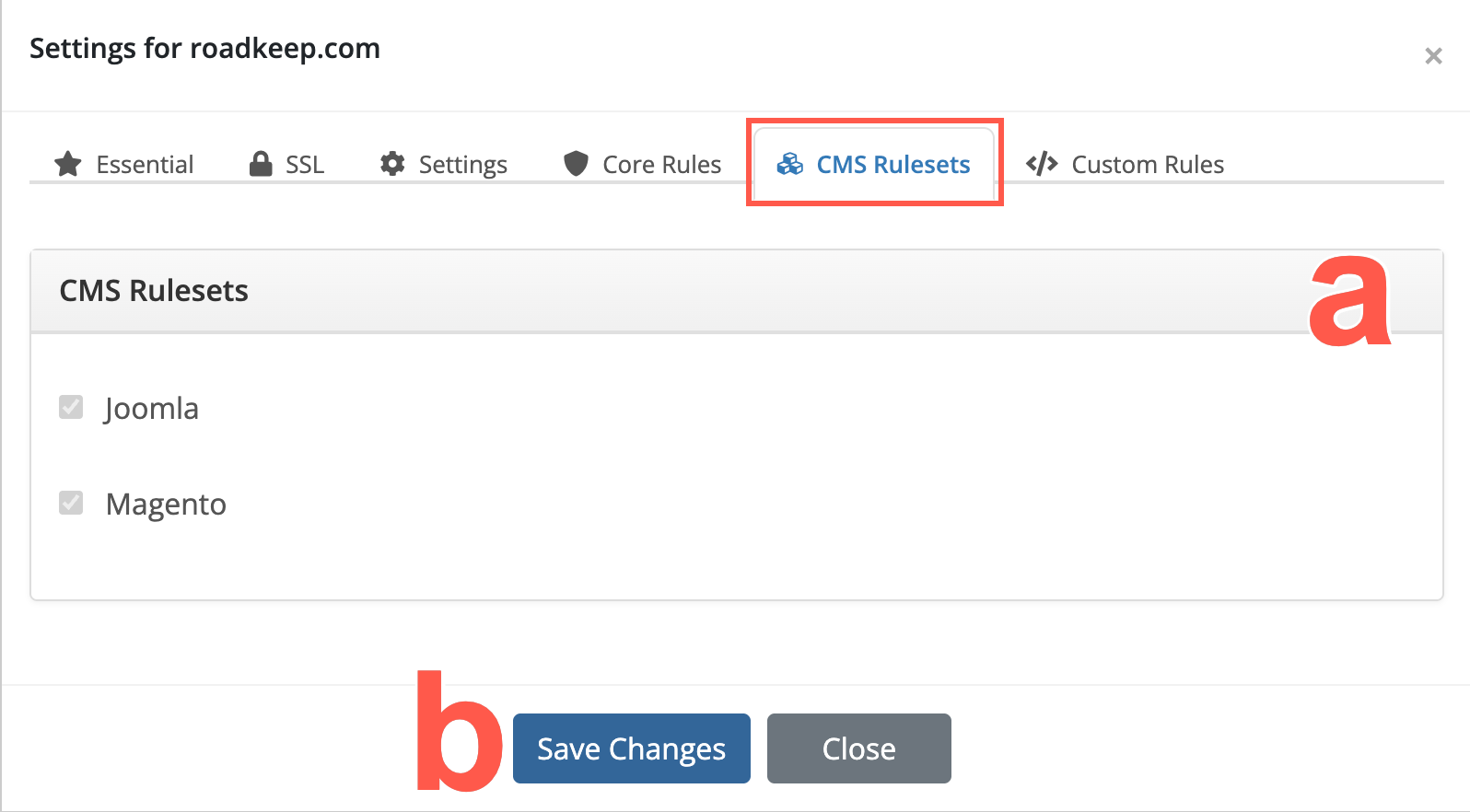
Use the CMS Rulesets tab to enable or disable CMS-specific protection rules for the protected domain.
-
Select the checkbox for each CMS ruleset that applies to the website.
- Joomla: Enables protection rules for Joomla websites.
- Magento: Enables protection rules for Magento websites.
-
Click Save Changes.
- Confirm that the updated CMS ruleset configuration is saved successfully.
Custom Rules are different to Blackwall's Core Rules. Whilst our default Core Rules greatly decrease bot traffic for your website(s), some visitor behavior might still present a cause for concern. This is where our Custom Rules engine can help you to eliminate those visitors from accessing your website. The Custom Rules engine may be used for bespoke purposes, but the main two purposes are:
- Whitelisting (unblocking) of currently blocked services and clients.
- Blocking of services and clients that currently have access to your site.
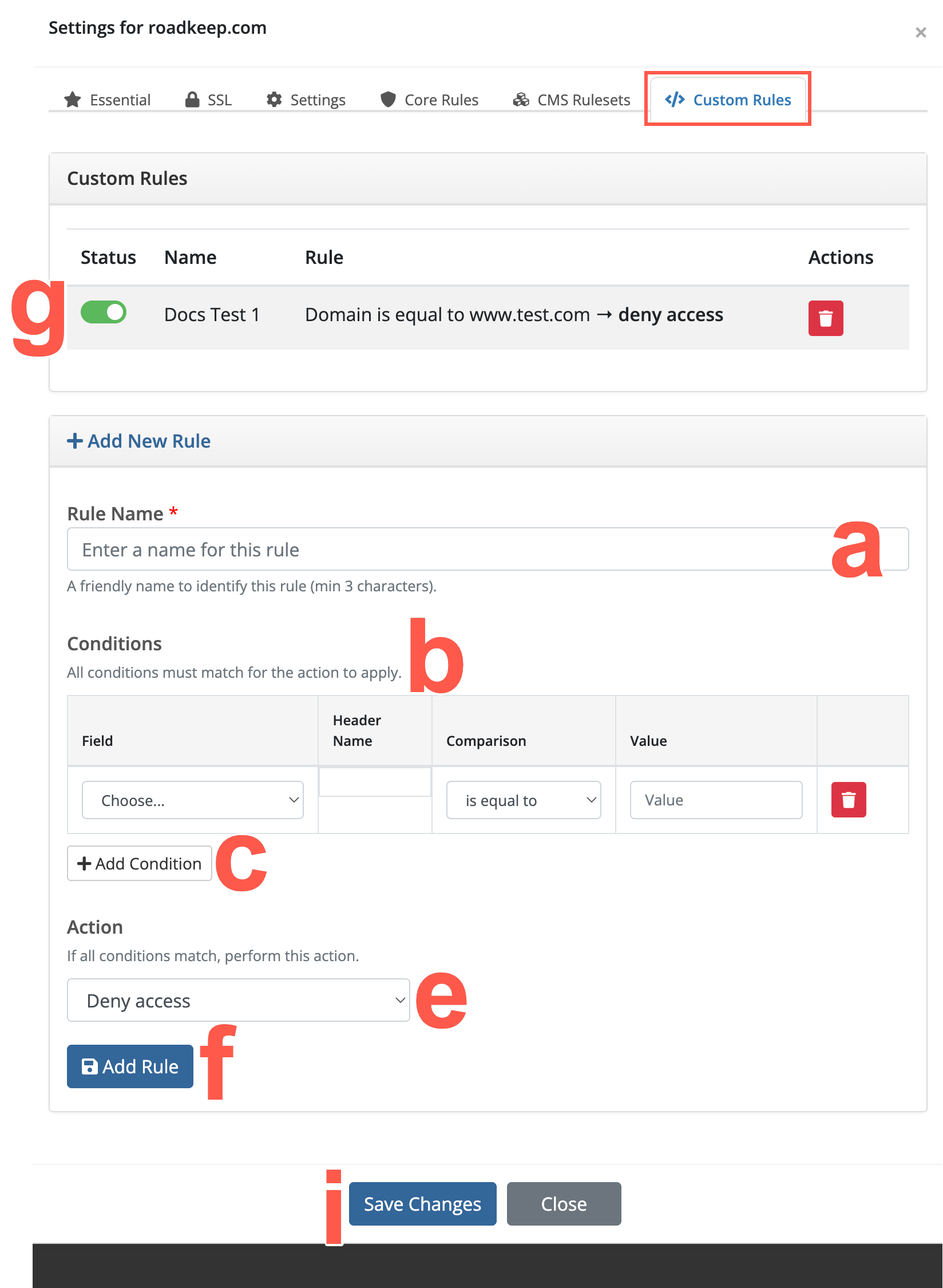
Add a custom rule by performing the following actions:
- In the Add New Rule section, name your rule, by typing a unique name into the Rule Name field.
- Set the trigger Conditions for your rule:
- In the Field dropdown menu, select from the listed criteria.
Click to review the criteria options
- Autonomous System Number - type the AS number using numbers only, but do not include a prefix with AS/ASN abbreviations.
- User-Agent - the corresponding HTTP header, which is sent by any software that makes a request to your server. You could use this condition to block/allow requests from various browsers, like Google Chrome, Mozilla Firefox (or their mobile versions), CLI tools like wget or curl, programming languages libraries, like Urllib or requests in Python, Go Http Client, libwww-perl, etc. You can also try exploring the world of various User-Agents to get more examples via special databases. We recommend checking out whatismybrowser.com or useragentstring.com.
- Country Code - used to restrict access based on visitor geography.
- IP Address - our advice is to whitelist administrator/developer/QA IP addresses (IPv4 or IPv6 - Blackwall supports both). These people often use custom software and send unusual requests to the site, which might be blocked otherwise. Please be sure to whitelist your site’s uptime monitor IP address. This condition supports CIDR notation to list IP subnets, like 123.123.123.123/24. You can also easily list different subnets in a single rule using the ‘Is any of’ match type (separating each subnet with a comma followed by a space, for example: first, second, third, ).
- Referrer URL - a browser sends the location of where a link to your site was clicked in a special "Referer HTTP Header. One common Custom Rule, which might be useful for you, is to block visitors with an empty ‘Referer’ header. When the ‘Referer’ header is empty, it means that the client made a direct request to the site, and didn’t follow any link or perform any search request prior to the visit. Most of the time it’s fine, because it means the user typed your site address from memory, but sometimes it’s an indicator of bot traffic.
- Internet Service Provider - firstly, type the ISP name and secondly, type the AS number using numbers only. Do not include a prefix with AS/ASN abbreviations.
- HTTP Header - condition does the same as the two headers above, but you could use any HTTP header here, even non-standard ones.
- URI Path - this condition allows you to grant or deny requests that were sent to certain URLs on your site. You should omit the scheme and domain name to use it. For example, a bot is sending requests to URL
https://www.example.net/some/path/resource.html, in which case you would use/some/path/resource.htmlfor the rule. Commonly used with the Match to expression match type to cover multiple files and directories via Regular Expressions. - Domain - our service automatically protects the subdomains for your main domain name. But sometimes you might need to apply a Custom Rule to some specific subdomains, this is where you should use this condition.
- If you selected HTTP Header in the previous step, then populate the Header Name field with the name of the header that you wish to use in your trigger.
- In the Comparison dropdown menu, choose an operator. The operator options available in this dropdown are pre-defined based upon the criterion selected in the previous step.
Click to review the operator options
- Is / Is not - this means a strict match
- Contains / Not contains - a partial match to the rule string
- Greater than / Less than - applicable to number values only
- Is any of - a strict match to stated possible values
- Matches the expression - matches a regular expression
- Type a value into the Value text field. This is the value for the corresonding operator selected in the previous step.
- In the Field dropdown menu, select from the listed criteria.
- Optionally, click Add condition to add another condition.
- If you added another condition in the previous step, repeat steps 4a-4d to add the new condition parameters. You can add multiple conditions to a rule, but note that when adding more than one condition, all conditions are treated with the logical operator AND. This means that all listed conditions must be triggered before the associated action is performed. Optionally, to remove a condition that you do not want associated with your rule, click X beside the condition to be deleted.
- Now choose an action that is to be triggered by your condition(s). Choose from the following actions:
Click to review the actions available
- Deny access - access is denied to your website.
- Grant access - access is granted to your website.
- Use CAPTCHA - access is granted to your website, but only after successful completion of a CAPTCHA challenge.
- Redirect to: - regular access is denied and the traffic is redirected to either a particular page in your website, or another website page entirely. After selecting this action, you must provide the URL of the redirection target page.
- Limit request rate by: - access requests from the same source are restricted within the bounds set in the additional fields for this action. After selecting this action, you must state how many requests that you will allow within a stated time period.
- Click Add Rule to add your new rule.
- In the existing Custom Rules list, locate your new rule and make sure that the rule activation toggle switch is activated. In the future, you can choose to deactivate this rule if required, or even delete it entirely.
- Repeat steps a-g to add as many rules as you need.
- Click Save Changes.
Once created, rules can not be edited. If you need to change a rule, add a new rule with the new configuration desired and then remove the old rule.
Note
For FIELD VALUE entry for step 2c and the Redirect option for available actions in step 3, you can add URLs in two ways. You can:
- Add the URL as an absolute URL including the transfer protocol; e.g. http://anywebsite.com/any-page
- Alternatively, you can add the URL as a relative URL, so long as the URL is in the same website as the one for which you are creating a custom rule; e.g. /any-page. In effect, this is the same as using http://your-protected-website.com/any-page.
-
Viewing Statistics
The Statistics page gives you a simple, comprehensive, and objective snapshot of your domain's security status and associated metrics. These aggregated results and statuses present in manageable chunks of visual information that enable you to see what's going well, what needs improvement, and if necessary, where you must take action.
- Log into your WHMCS account.
- From the top navbar, click the Accounts dropdown.
.
- From the dropdown menu displayed, select Login.
- Type your username (your email address) and password.
- Click Login.
- From the top navbar, click the Accounts dropdown.
- Scroll the list of services displayed until you find the one that you are looking for.
- Click the View Details button that corresponds with your desired domain listing.
- When the Product Details page displays for your selected product, scroll to the Actions section.
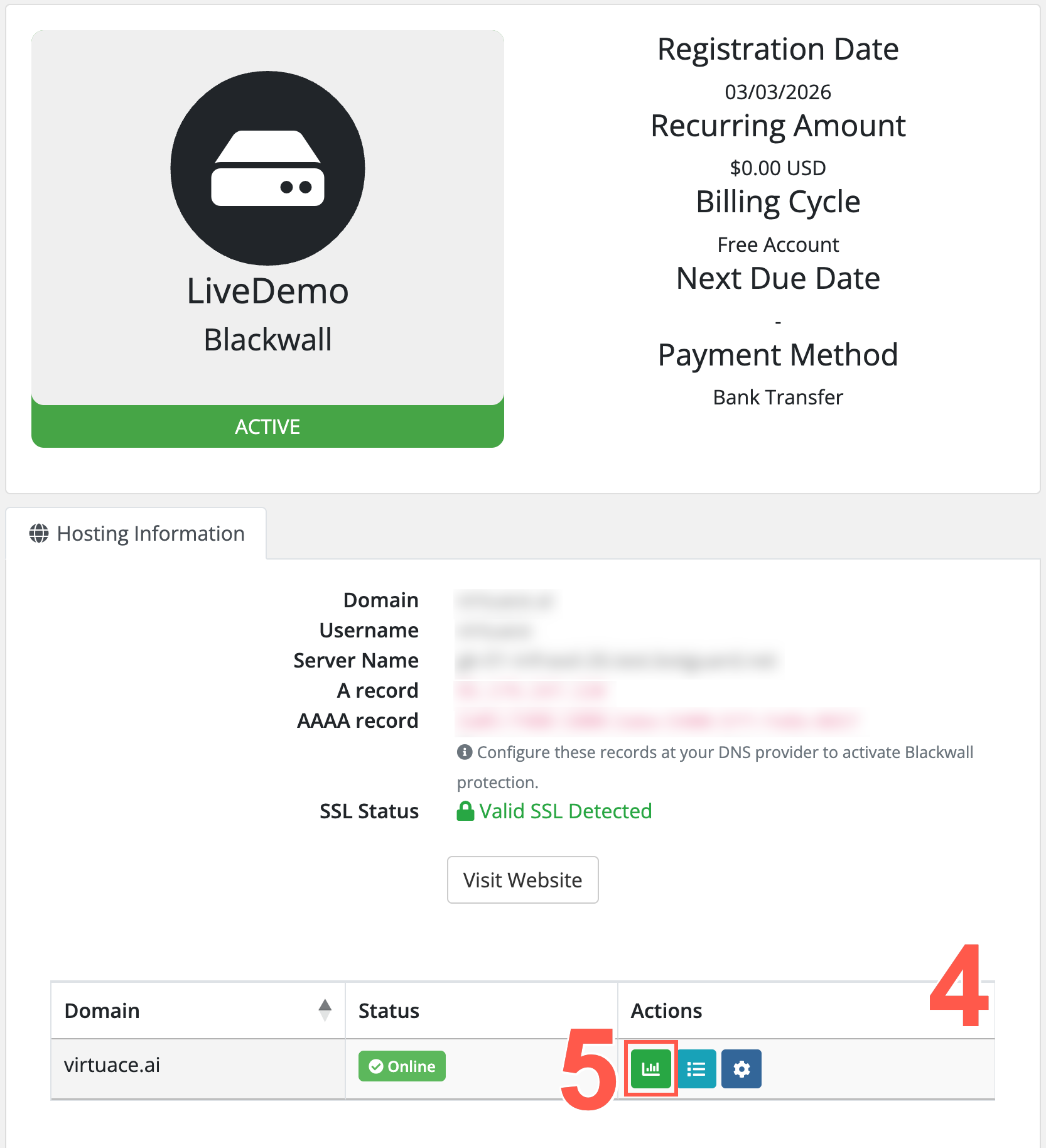
- Click Statistics.
- Review the Bot Ratio widget displayed, which provides a graphical breakdown of Good Bot versus Bad Bot versus Humans interactions with your web assets. All statistics are displayed by default.
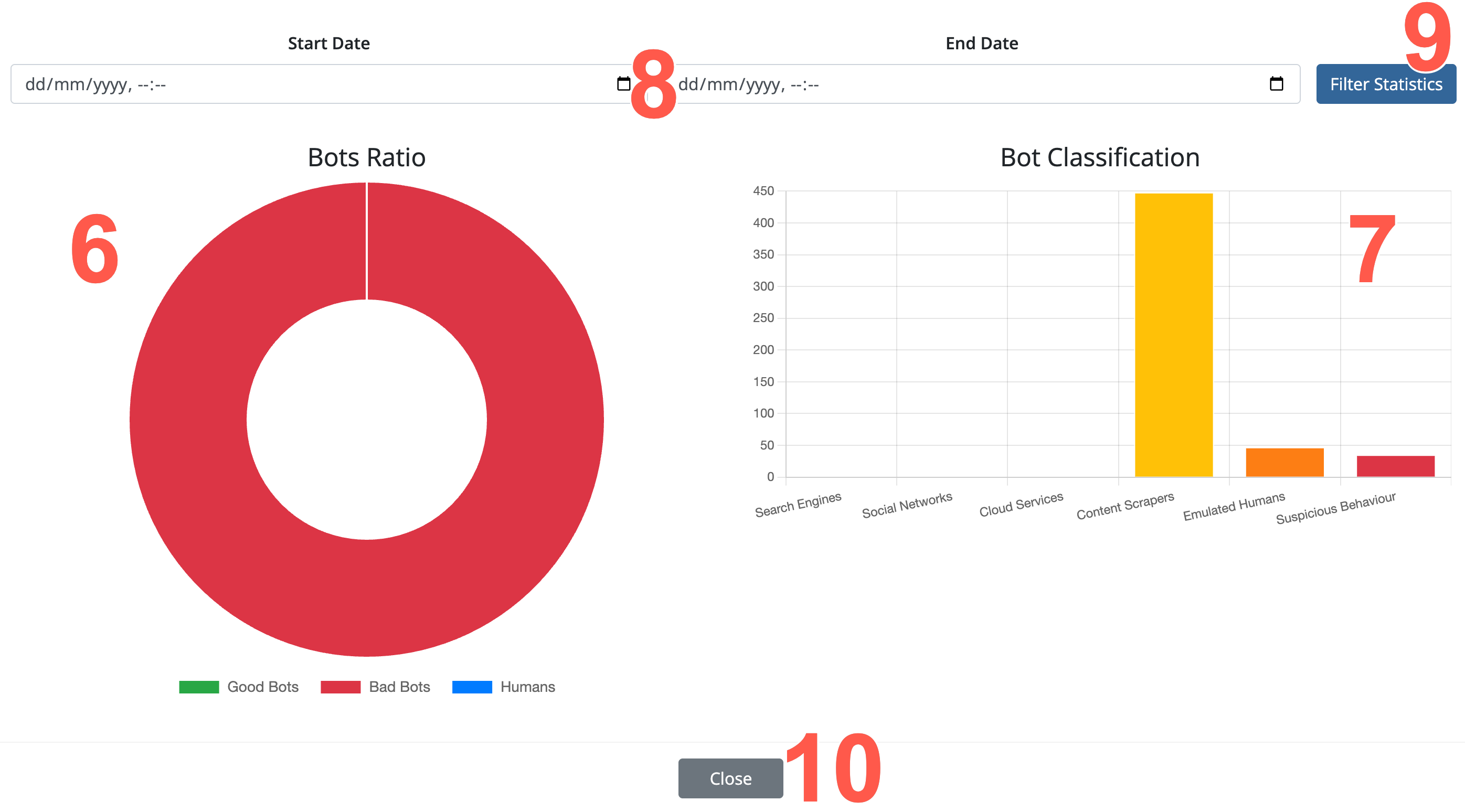 .
. - Review the Bot Classification widget displayed to the right on the page to visualise bot activity against each classification. This widget uses a bar chart to show the number of requests categorized for easch classification. Each category bar is divided into Passed and Blocked portions, indicating whether the bot traffic was allowed or mitigated. This visualization helps analyse which bot types are most active and how mitigation is being applied across different categories. All statistics are displayed by default.
- If you want to filter statistics by dates, then in the Start Date and End Date fields, define a custom time period using the date selectors.
- Then click Filter Statistics to filter all statistics. All widgets on the page instantly refresh to show data filtered for the time period selected.
- Once you have finished reviewing statistics, click Close to exit the page.
Viewing Events
In the context of the Blackwall platform, Events are the actions, activities, or occurrences that the platform tracks and analyzes to determine whether traffic is generated by a human or a bot. Events are fundamental to Blackwall's detection capabilities, as they provide the raw data needed to make critical decisions about suspicious or malicious behavior.
- Log into your WHMCS account.
- From the top navbar, click the Accounts dropdown.
.
- From the dropdown menu displayed, select Login.
- Type your username (your email address) and password.
- Click Login.
- From the top navbar, click the Accounts dropdown.
- Scroll the list of services displayed until you find the one that you are looking for.
- Click the View Details button that corresponds with your desired domain listing.
- When the Product Details page displays for your selected product, scroll to the Actions section.
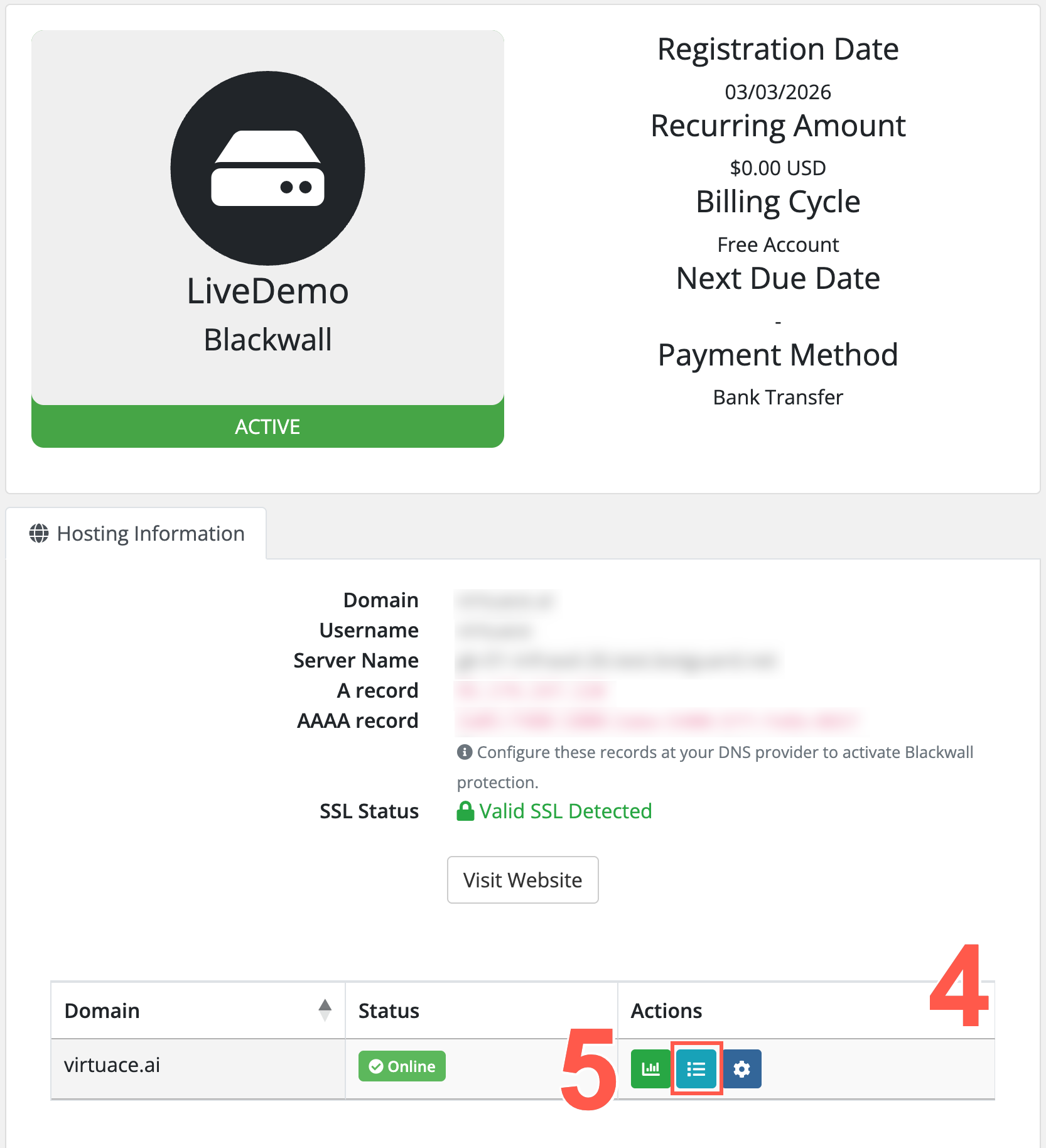
- Click Events.
- View traffic events in the table that displays. All events are displayed by default.
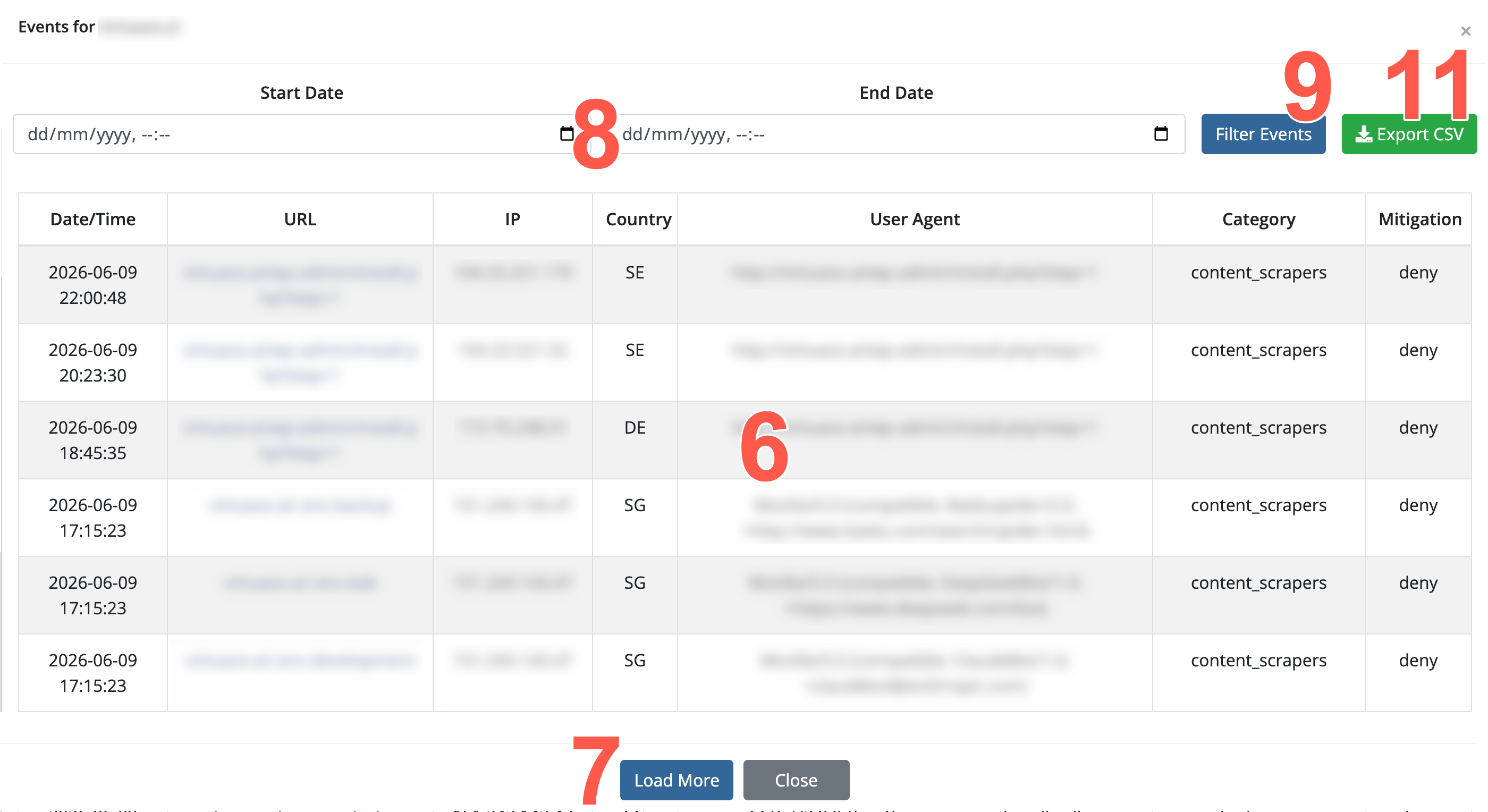
- Click Load More to view more results.
- Optionally, use the two date selector fields to set a start and end date for your custom time period.
- Then click Filter Events to filter using your selected filter values.
- View all filtered traffic events in the table that displays.
- Optionally, click Export CSV to download your displayed results to a CSV file.