Encrypt Your Content
Content Encryption is a key feature within Blackwall’s content protection category. It protects website text from automated scraping and content theft by scrambling the font-level character mapping for selected content. The protected text remains fully visible to human visitors, while scraping tools and bots only receive meaningless characters when trying to extract it. Implementing Content encryption provides enhanced security, keeping allowed traffic private in transit and enhancing latency.
Prerequisite to Using Content Encryption
This functionality is currently available on an early access basis only. Customers who wish to enable it should contact their Blackwall Sales lead or Customer Success Manager to request activation before attempting implementation.
Following successful activation of the Content Emcryption feature, you must implement the following two steps:
- Enable the Content Encryption feature.
- Insert encryption markers into your HTML to mark the sections you wish to encrypt.
Enable Content Encryption
You can enable the Content Encryption feature when creating Custom Rules or by executing the following instructions when configuring Core Rules:
- Ensure that you are logged into your Blackwall account.
- From the main navigation menu bar, select Websites.
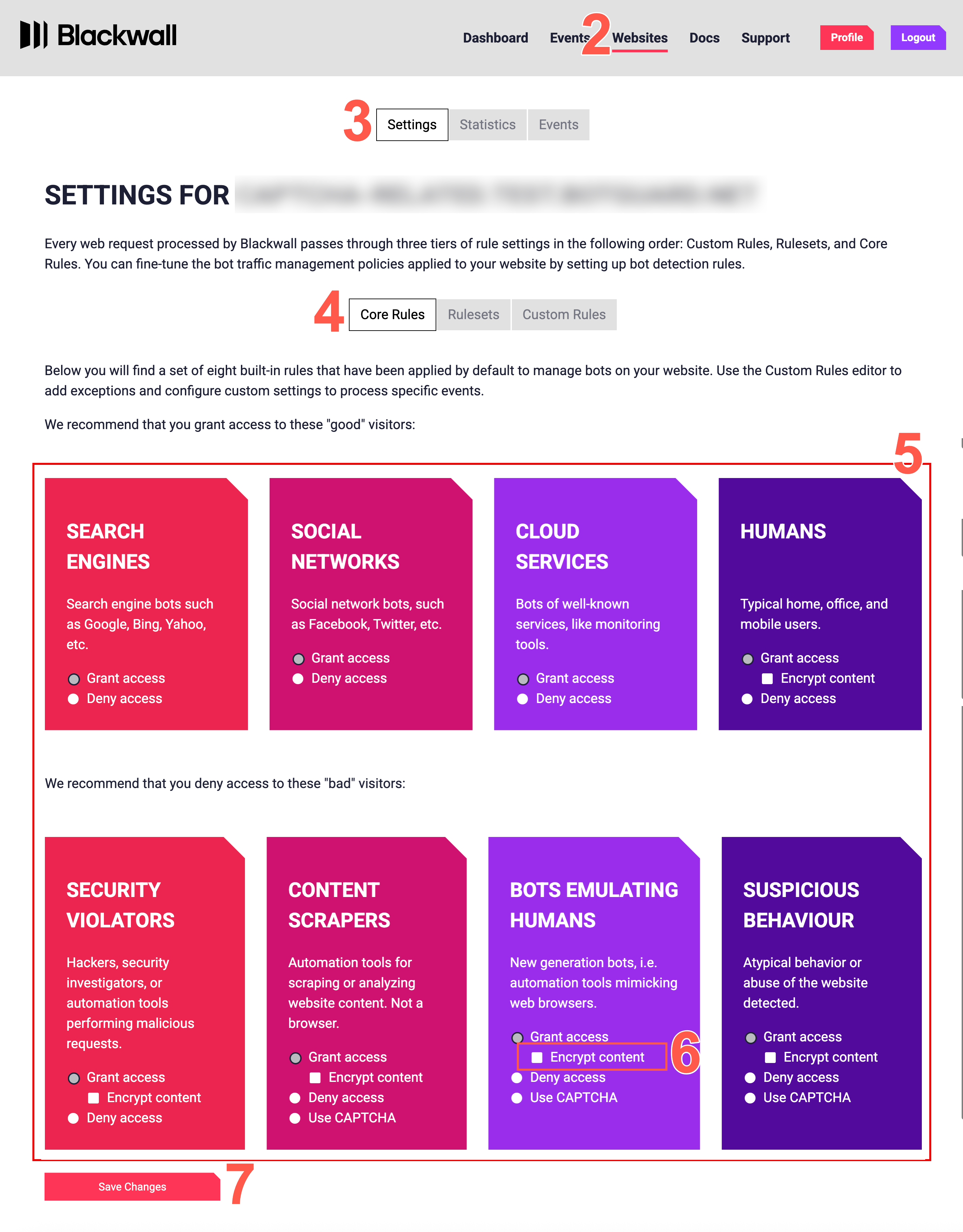
- In the secondary menu, select Settings.
- From the rules menu, select Core Rules.
- From the eight core rules displayed, five enable the user to encrypt content, once Grant access is selected. Locate one or more of these five rules that you wish to allow encryption for. For the desired rule, if the Grant access radio button is not already selected, select it now.
- Place a check in the associated Encrypt content checkbox.
- Click Save Changes to save your changes.
Default Core Rule settings
Blackwall recommends keeping Blackwall's default Core Rule settings, unless you have a particular use case that necessitates a change.
Once you have enabled Content Encryption, the traffic that you are granting access to is carried over an encrypted path, rather than the default transport. It doesn’t change what gets through; it only changes how the allowed traffic is transported.
Insert Encryption Markers Into HTML
GateKeeper protects selected portions of your webpage by encrypting visible text content. Although the feature is now enabled, you must identify text to apply encryption to in your HTML. To do this, you must add encryption markers around the content to be encrypted. This tells GateKeeper which parts of the page to process for encryption.
HTML Encryption
GateKeeper only encrypts text content within the added HTML markers and images, videos, and other non-text assets are not affected. All markers must match exactly (case-sensitive and no extra whitespace).
To add HTML encryption markers, perform the following steps:
- Navigate to the source HTML files for a website protected by Blackwall.
- Open the HTML file that you want to protect.
- Between the opening and the closing
</head>tags, insert the following marker exactly as written: If no<head> </head>tags exist, then you can create them and add the marker above. - Identify the section of the page you want to protect (e.g., prices, business-sensitive text, or content intended to block automated crawlers or LLMs).
-
Place the following start marker immediately before the protected content:
-
Place the end marker immediately after the protected content:
- Save all changes and republish your website to effect the changes to the public website.
Example Content With Encryption Markers
The following is an example:
<head> <!-- BG-INCLUDE --> </head>

<p>Standard product description visible to everyone.</p>

<!-- BG:ENCRYPT -->
<p>Enterprise price: €349/month</p>
<p>Internal note: Bulk discounts available on request.</p>
<!-- /BG:ENCRYPT -->

<p>More public content continues here…</p>
For the above example, users can see all the text, but scrapers and copied output appear like this:
Standard product description visible to everyone.
More public content continues here…
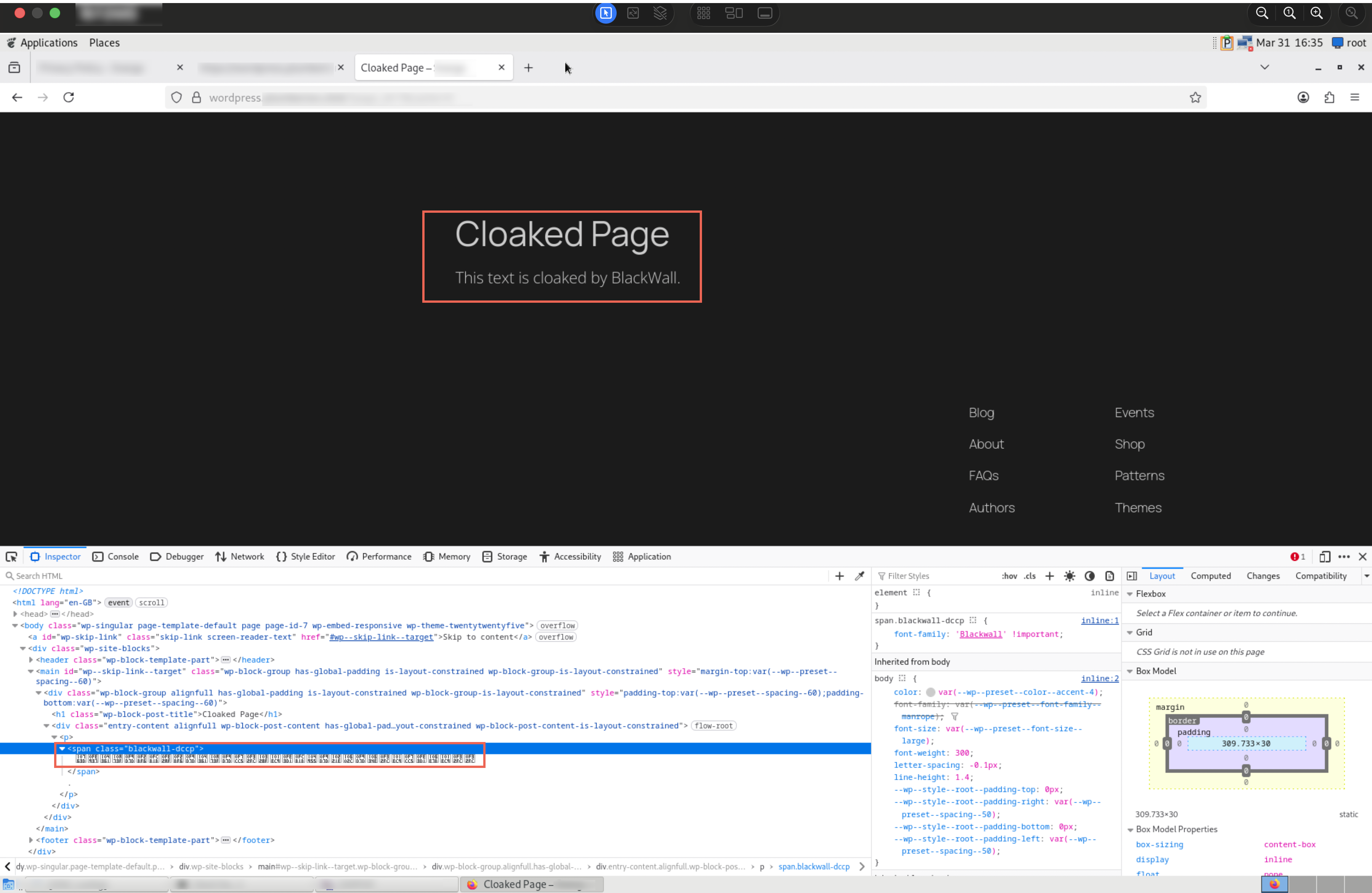
If you have chosen to cloak an entire page, then it will appear like this in your source html and browser: