FAQs
General and compatibility questions
How can I check whether my e-commerce website needs Blackwall protection?
In recent years, bad bot traffic has grown so much that virtually any eCommerce website can benefit from using some kind of traffic management tool. You can easily perform a rapid scan of your website to check its current protection. This very simple scanner emulates access to your website with fake search engines, popular commercial bots, and browser emulators. This rapid test takes less than one minute and it will provide all the information that you need to make an informed choice about what Blackwall can do for your online business.
What happens if Blackwall blocks a bot that I need?
BotGuard have developed a special method to avoid false positives. Blackwall lets you start monitoring your automated traffic in no blocking mode. The website administrator is then advised by our AI Advisor to enable blocking rules one by one, based on your traffic. The Blackwall dashboard enables you maintain and fine tune custom blocking rules. If any identified threat requires your attention, you are notified by email.
Will Blackwall affect how search engines index my website?
No, search engines like Google, Bing, Yandex and others continue to access your website as usual.
Does Blackwall protect my website against DDoS attacks?
No, Blackwall doesn't provide a service against Distributed Denial-of-Service (DDoS) attacks. Typically, such an attack is targeted against the network infrastructure in an attempt to overload its resources. However, if protection against volumetric-DDoS attacks is provided, Blackwall is a great addition, since it can resist Denial-of-Service attacks at the application level (L7), blocking the bots' access to the web application.
Do I still need Blackwall if I already use anti-DDoS protection?
Yes, this is our basic recommendation. It's important to note that Blackwall does not provide anti-DDoS protection. Rather, we integrate at the web server level to manage bot traffic (e.g. scrapers, content theft, competitive monitoring, hacker attacks). The most sensible approach is to combine the two forms of protection. For example, some of our partners combine Cloudflare for DDoS protection with our service for bot management, since our system is based on digital fingerprinting and can be fine-tuned to the needs of a particular website.
Can I use Blackwall with my existing Web Application Firewall (WAF)?
Yes, you should combine your existing WAF with Blackwall's bot management service. You do not have to use our WAF at all. We already have a number of users who take this approach.
Does Blackwall scan my website for vulnerabilities?
No, the Blackwall service analyzes your traffic, identifies the visitor, and helps your server correctly process the request in accordance with your own settings. We do not monitor your website security.
How does Blackwall handle visitor privacy and traffic data?
The short answer is we don't. We process the content of a website visitor's request, but we do not store this data. We process it dynamically and we do not use digital identifiers such as cookies or fingerprints that attribute requests to the unique user.
Can I try a Blackwall demo?
Yes, we have a demo website at demo.botguard.net, which is protected with the Blackwall Cloud Website Protection service. You are welcome to try emulating any bot or human traffic to our demo site and check whether the bots are blocked by Blackwall's service.
Which languages are available in the Blackwall dashboard?
We currently provide an interface in English. The appropriate localized version is set up automatically according to the OS/browser language. We have a number of localized versions currently under development.
Does Blackwall use CAPTCHA?
Blackwall does not use captcha by default. Normally, neither user action like captcha or additional input is required. However, you can configure the blocking policy so that captcha is used in doubtful cases. For most of your website users, nothing will change with their service.
Will Blackwall slow down my website?
Yes, the website response time can increase slightly due to the website visitor filtering. Fortunately, it's not more than a few milliseconds. Blackwall servers are located close by to ensure high speed and minimal network latency.
What should I do if Blackwall blocks access to my site control panel?
Blackwall blocks access to the website admin pages for security reasons. You can create a special custom rule based on your IP address (Blackwall supports both IPv4 and IPv6), or allow access to these pages from any address. To add a special custom rule, open the Rules Editor page and create a new rule based on your IP address (Blackwall supports both IPv4 and IPv6). Refer to Custom Rules for more information.
To allow access to everyone, create a rule (or a set of rules) allowing access to specific pages. For example, if the admin pages URL starts with http://example.com/admin/, then you can add a regex ^\/admin\/ to the rule to allow access to all of these pages.
Does Blackwall use blacklists, and how often are threat sources updated?
We use various databases as sources of "blacklists". This includes IP addresses (BotGuard supports both IPv4 and IPv6), autonomous system numbers, geolocation and software fingerprints. Data related to global attacks, such as DDoS, is updated online. Other databases are updated less frequently, usually every few days. You do not need to take any action to update, this is done automatically in our cloud.
Does Blackwall use HTTP/2 fingerprinting?
Yes, HTTP/2 fingerprinting is simply another passive signal that Blackwall uses to help distinguish legitimate clients from bots. In practice, Blackwall analyzes subtle aspects of the HTTP/2 handshake (frame ordering, settings, priority behavior, etc.) alongside its existing signals to improve detection accuracy. This capability is enabled by default without any user configuration or UI changes. If you are running Blackwall’s Apache integration, the fingerprinting module installs alongside our SSL fingerprinting module and quietly gathers data whenever HTTP/2 is in use. If HTTP/2 is not enabled, it simply does nothing. There are no new settings to tweak, no visible impact on logs (outside of trace-level debugging), and no actions required. Clients will not experience any noticeable difference, but this section helps to explain why we have it.
How do I get early access to GateKeeper test builds?
What is 'Early Access'?
Blackwall publishes Gatekeeper builds through two channels:
-
Production repository (recommended): This is the stable, fully tested release repository intended for the majority of customers. This is the default path in all GateKeeper Version Installations and it is what the versioned documentation is written against.
-
Test Repository (Beta / Early-Adopter Channel): This is a faster-moving repository that may contain new features and urgent minor fixes. For example, time-sensitive patches added by the Blackwall team for specific customer environments before they reach the production repository.
You should only use the test repo when you are in one of the following categories:
- An early adopter/beta tester.
- The Blackwall team explictly asks you to.
- When you need an urgent fix that's not yet available in the production repository.
Caveats Before Using the Test Repository
Before using the test repository, it's important to consider some important points:
- Since the test repository tracks newer builds, it may be less stable than production and it may contain regressions or incomplete validation compared to production.
- In future, it may also have different assumptions or minimum requirements than the latest stable release documented in the versioned guides. If using the test repository, make sure to follow this specific guide in this expandable section.
- If you follow version-specific documentation (e.g., v1.4.x or v1.5.x) while installing “latest” from the test repo, you may end up with a build/documentation mismatch, which can cause confusing setup behavior and false bug reports.
- Issues/bugs encountered on the test repository may not reproduce on production. If you encounter a problem while using the test repository, the first troubleshooting step is to switch back to production and confirm whether the issue still occurs. Remember to treat the test repository as a beta version. Always share details if something breaks, such as versions, logs, environment information, and keep a rollback plan so that you can return to the production repository quickly.
How do I Access the Test Repository?
As a prerequisite to installing Blackwall's GateKeeper, you must have Debian installed cleanly on your sytem at a minmum of version 12. Then you must add a Blackwall GateKeeper Debian repository and install packages, as described in the following steps:
-
Import the Blackwall package digital signature key by executing the following two commands:
-
Add the Blackwall test repository to your system repositories by executing the following two commands:
-
Install the latest version of Blackwall's GateKeeper by executing the following two commands in sequence:
-
Reboot your server to apply the changes to your operating system.
As an Early Adopter, How do I Report Bugs or Request Features?
If you choose to use the test repo, you should treat it as a beta path and tell us what you find. Feedback from early adopters is one of the fastest ways that we can catch real-world issues before they reach the stable release repository. When you find a bug or unexpected behavior, please report it as soon as possible to our Support team and include enough detail for us to act quickly. You should include:
- your Gatekeeper version/build.
- OS/distribution.
- install method.
- relevant configuration.
- any logs or error output.
Clear reports help us to reproduce issues, confirm whether they’re specific to the test build or the environment, and ship fixes faster for everyone.
We also welcome feature requests from test-repo users. If there’s a capability you’d like to see, or an improvement that would make Gatekeeper easier to operate in your setup, raise it alongside your feedback. Early input helps us validate product direction, prioritize the right work, and refine features while they’re still evolving.
To report issues and request features, please refer to our Support page in the documentation.
Can I receive monthly activity reports for my protected domains?
Yes, you can. Refer to instruction in the Accounts/Subscriptions page to subscribe to monthly reports. Following subscription, on the last day of each month you will receive separate emails for each domain being protected in your account. If you have 12 domains, you will receive 12 emails. Each email will contain a PDF report for the associated domain. These emails are sent to the email address associated with the account used to subscribe to the reports, but MSPs/Distributors can configure email forwarding rules for these emails if needed, to enable subaccount owners to receive the reports.
Technical issues
Which integration method should I use for a WordPress site on Apache?
We recommend integration at the web server level, as in this case the recognition quality is higher. In the event that this is not possible, you can integrate at the Content Management System (CMS) level with Blackwall's WordPress plugin.
Can I integrate with Blackwall using the API?
Yes, we provide an API for our partners to manage websites on their account. Typically we use this API in hosting panel integration modules. The documentation is available at SwaggerHub.
Can I view bot activity for each website in my account?
Yes, you can easily use the filter located above the log grid to filter the results that you want to see.
How can I view more detail about blocked bots?
You can do this by clicking on the link Add/Edit the rule.
What should I do if my antivirus blocks access to a Blackwall-protected site?
Antivirus MITM Proxy Help -You might experience issues getting to a protected website if you’re using Kaspersky or ESET NOD32 antivirus software. In this case, your visit in Event log will be recognized under Suspicious Behaviour category, with Probable MITM detected in Trigger details.
It might happen due to usage of built-in MITM (Man-In-The-Middle) proxy, which is used to decrypt HTTPS websites traffic. Such practice is questionable because on contrary in some scenarios and implementations it actually might lower your web traffic security, but it’s the only way for antivirus software to take a look into your encrypted web traffic.
Note
Please consider enabling CAPTCHA mitigation for Suspicious Behaviour category. This way, the users that are able to solve CAPTCHA challenge would be granted with access to your website
MITM proxies implemented by Kaspersky and ESET are known to modify your web browser digital fingerprints. And your web request might look to be made by non-original software, and it would be detected as bot by our request analysis engine.
There might be various workarounds for the issue.
Kaspersky
Whitelist your protected website for Kaspersky:
-
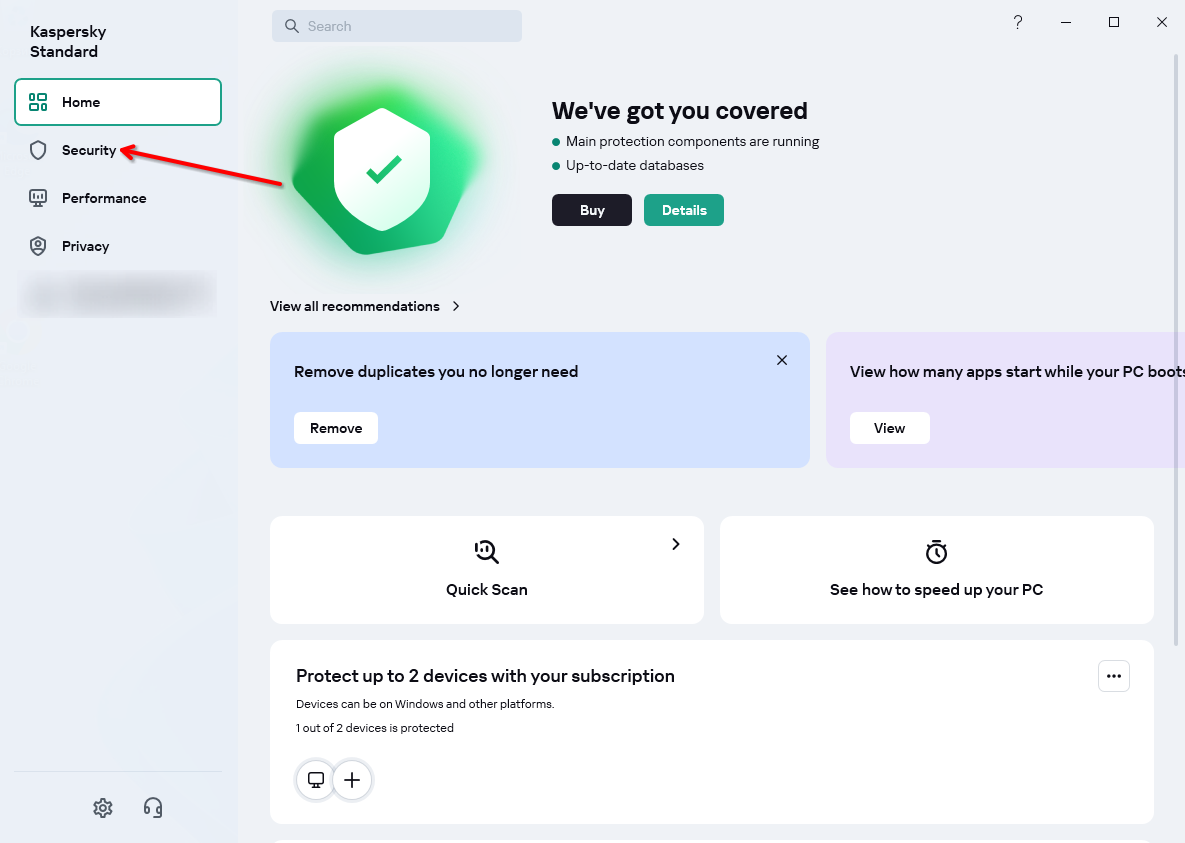
Open Kaspersky and go to Security tab
-
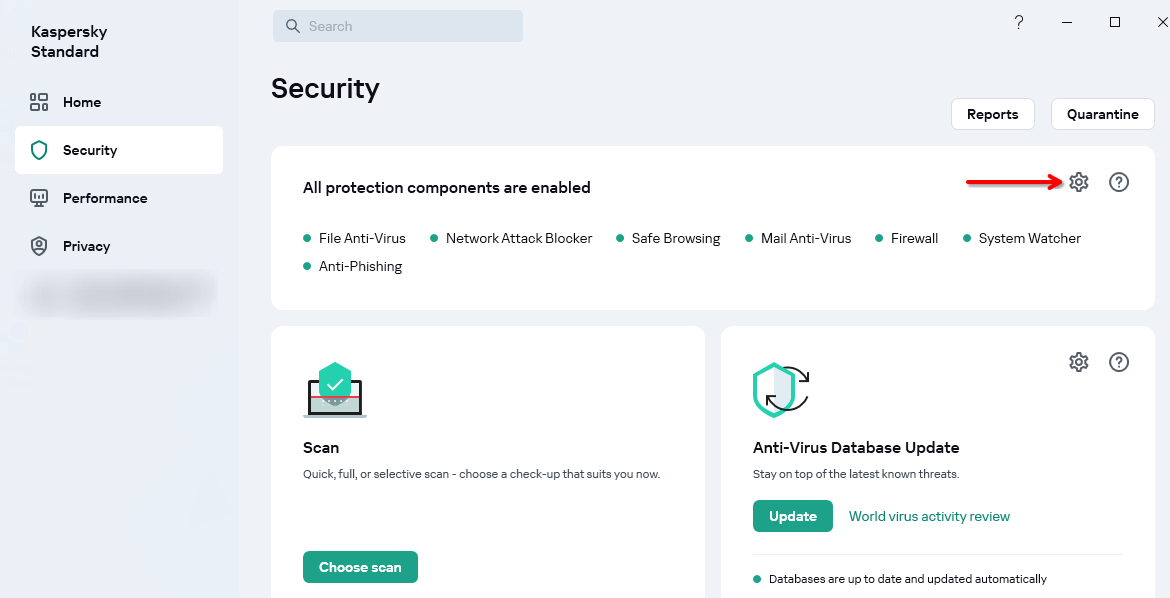
Click this gear icon to open settings
-
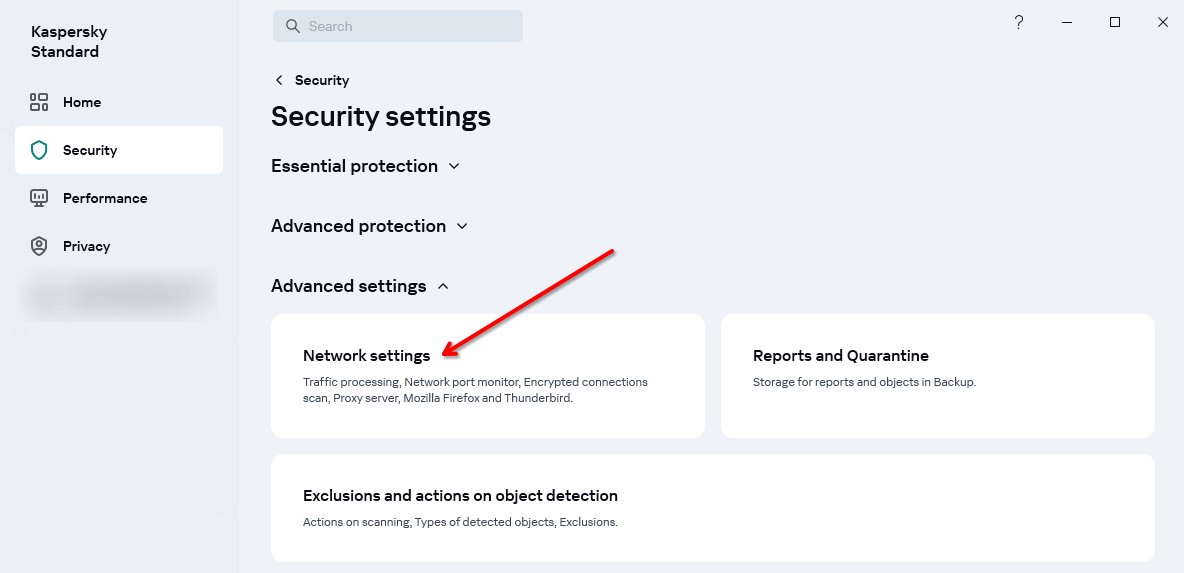
Click Network setting in Advanced settings section
-
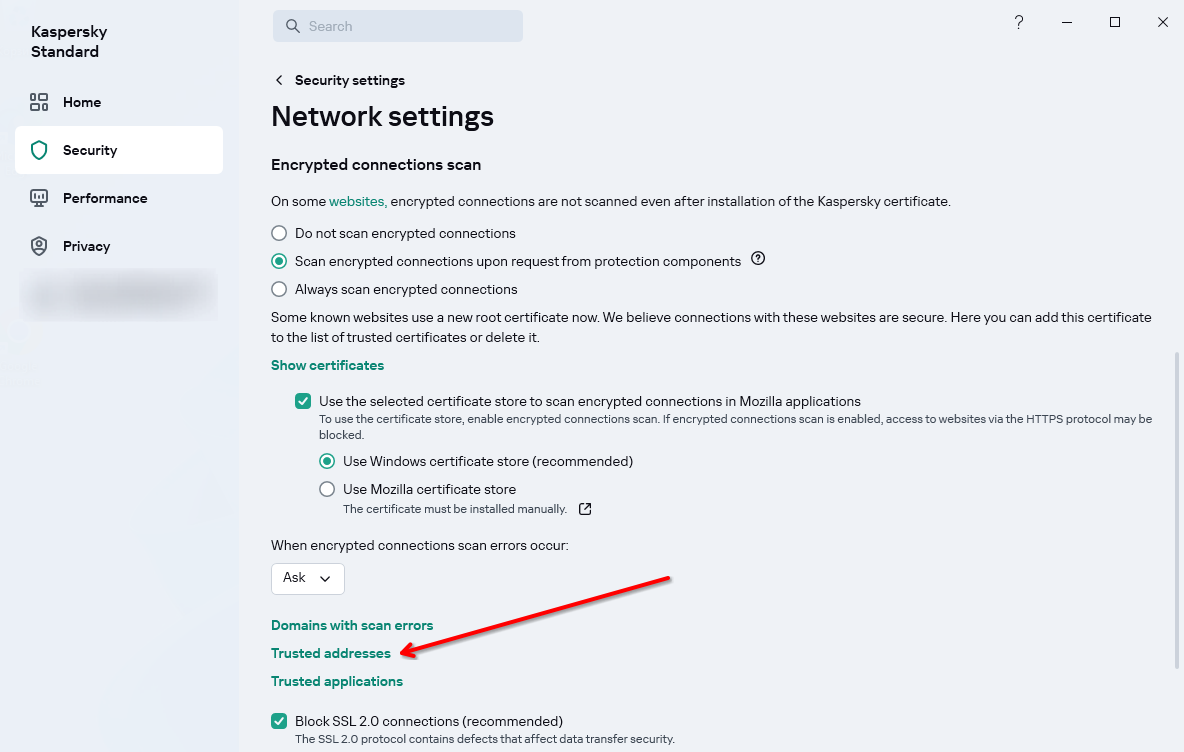
Click Trusted addresses in Encrypted connection scan section
-
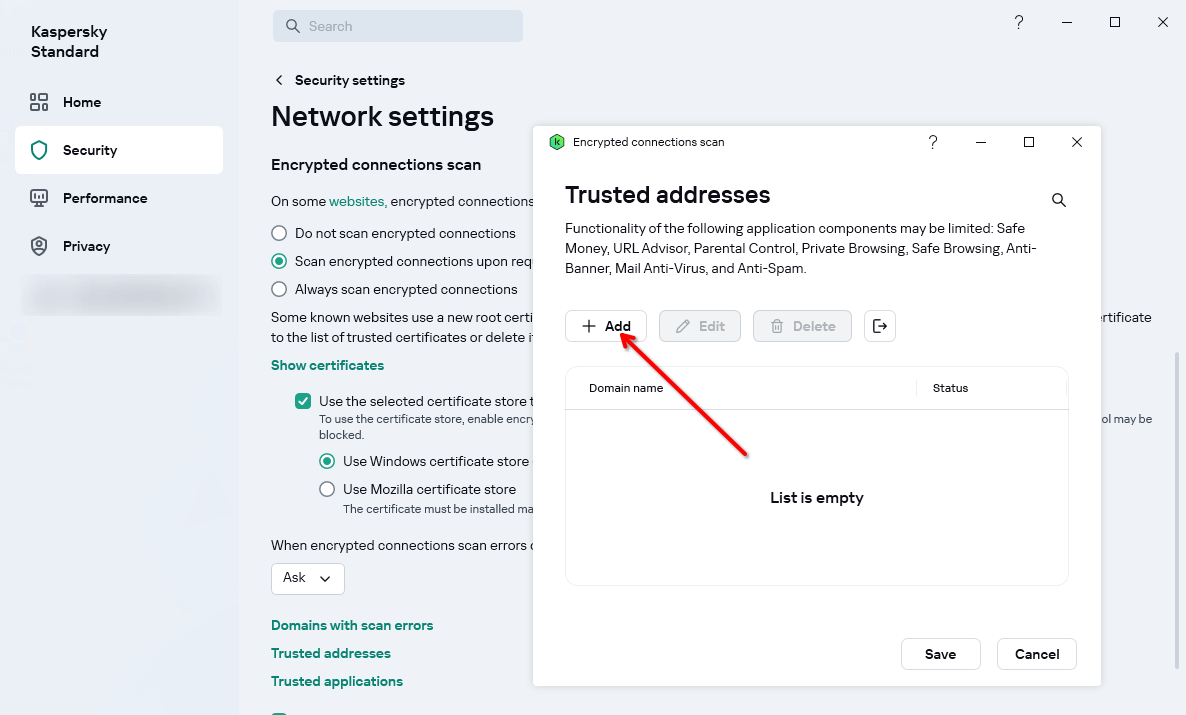
Click Add
-
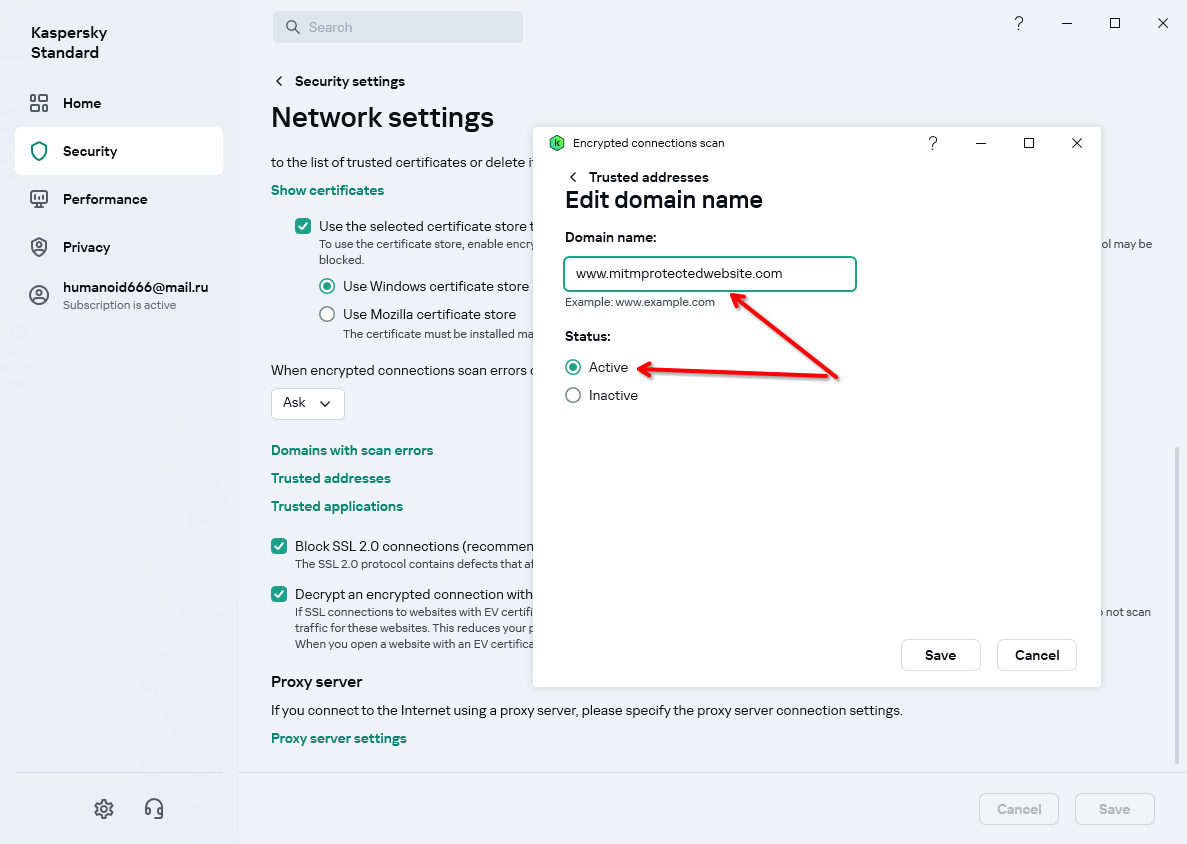
Enter your website URL, select Active radio button and save changes
-
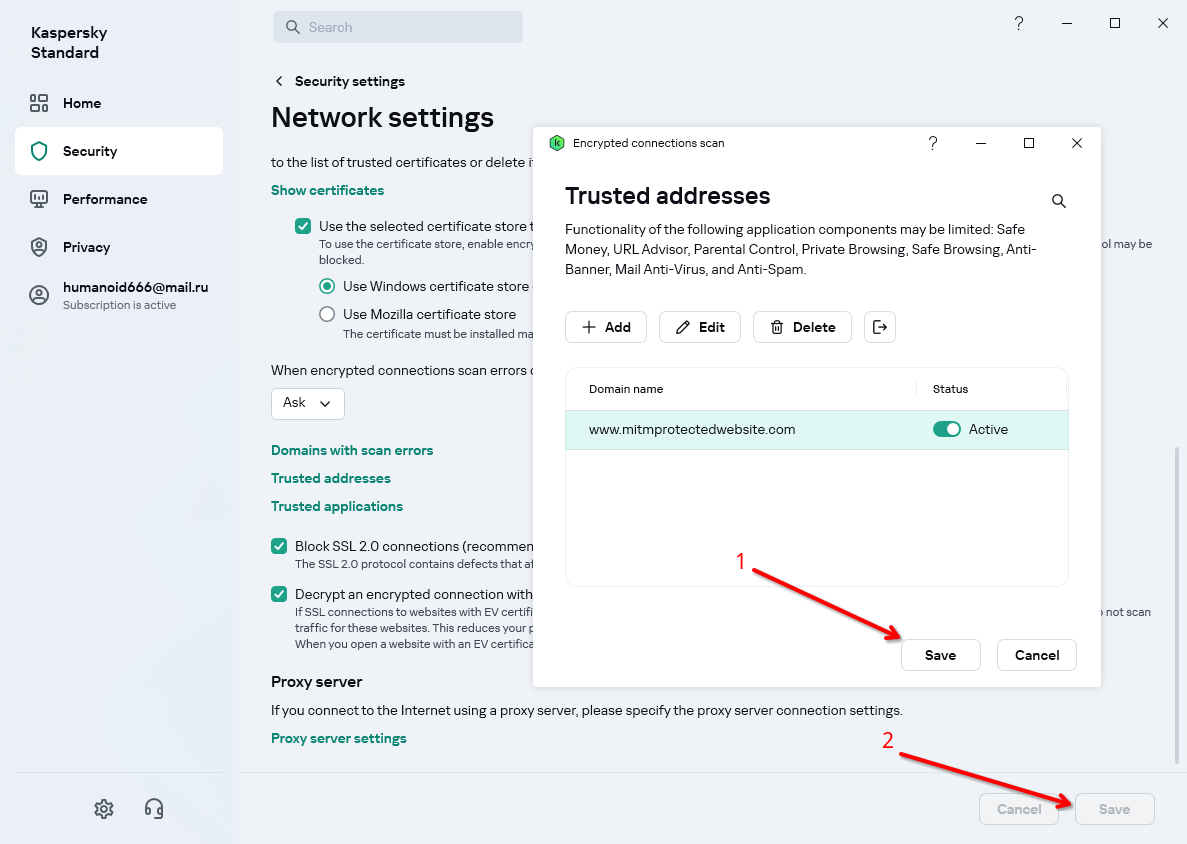
Save (1) changes to website exclusions list
-
Save (2) new Kaspersky settings (it will show a prompt to confirm if you really want to change settings)
-
Visit protected website again
Disable Kaspersky MITM proxy
-
Perform the steps 1-3 from the whitelisting guide above to get into MITM proxy settings
-
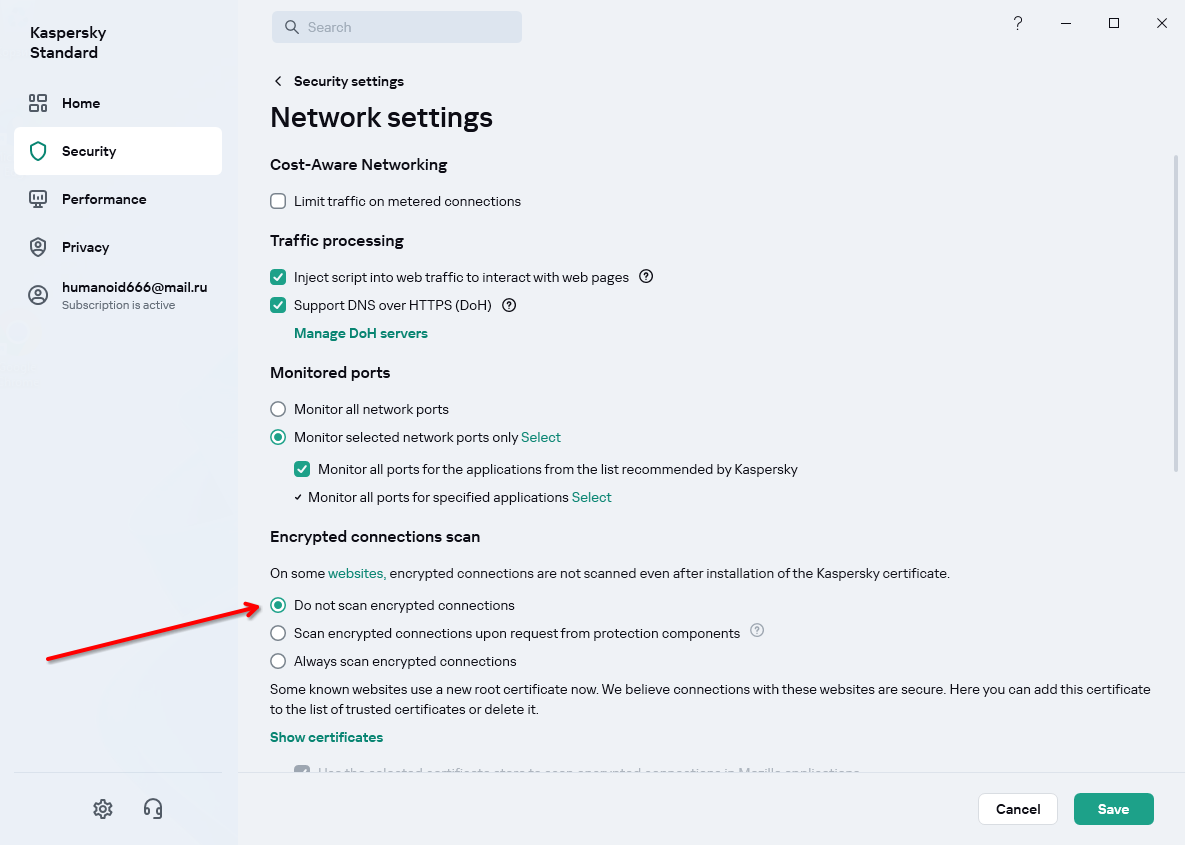
Choose Do not scan encrypted connections in “Encrypted Connections Scan” sections
-
Read about the consequences of your decision and click Save to apply new settings
-
Visit protected website again
ESET NOD32
Whitelist your protected website for ESET NOD32:
-
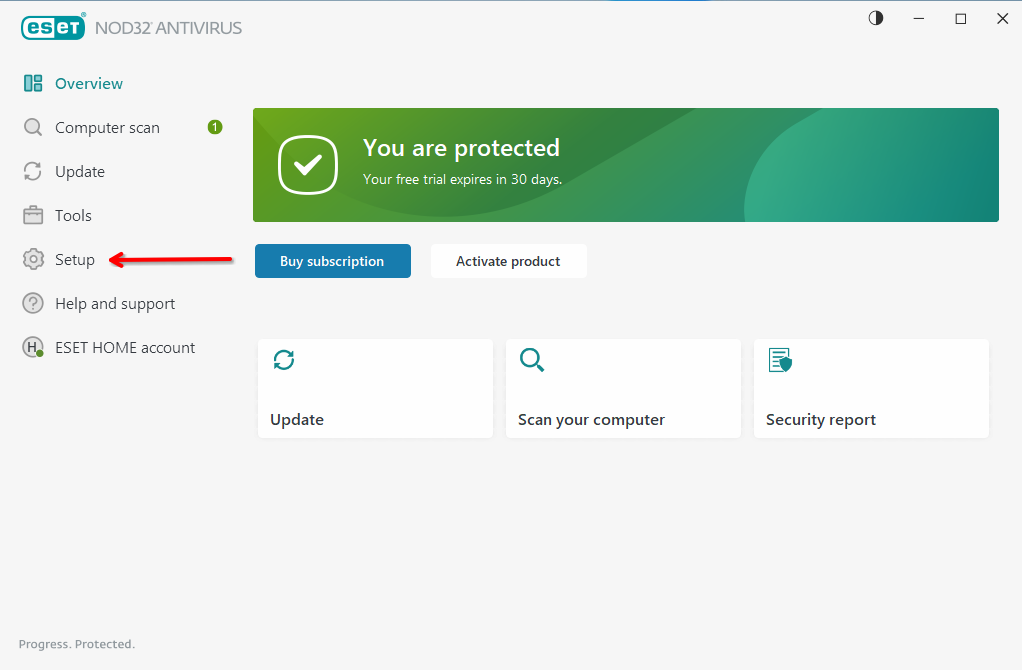
Open ESET window and navigate to Setup tab
-
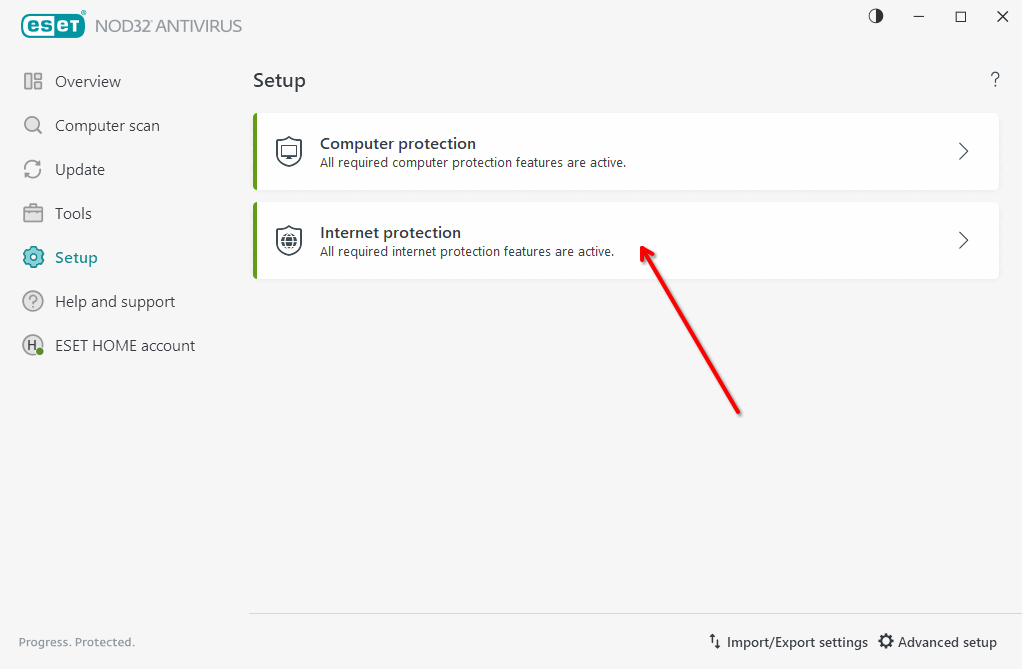
Click Internet protection
-
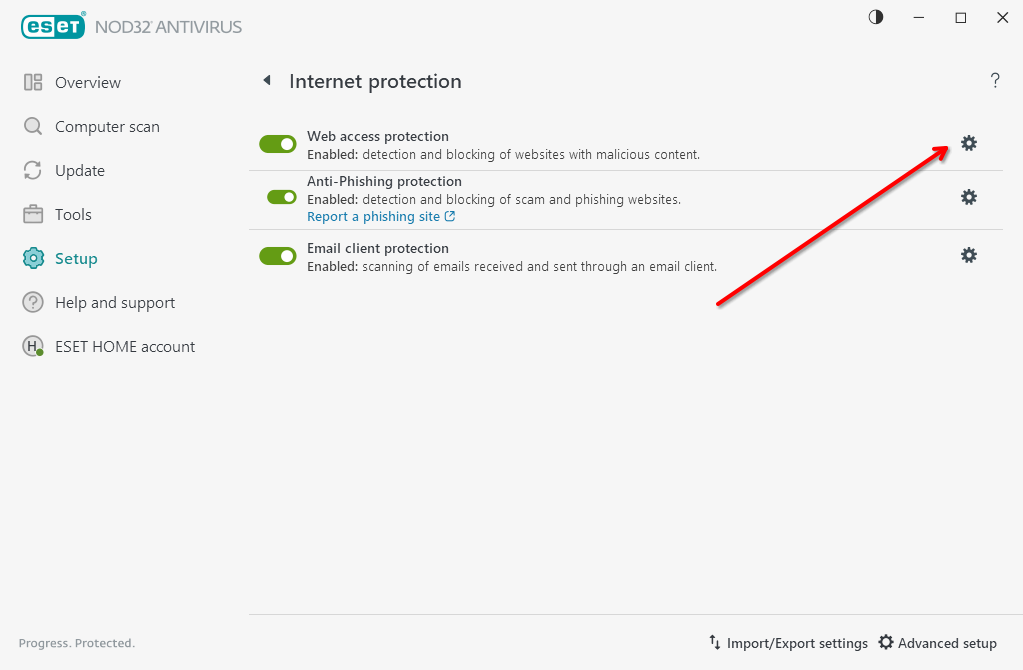
Click gear icon in Web access protection row
-
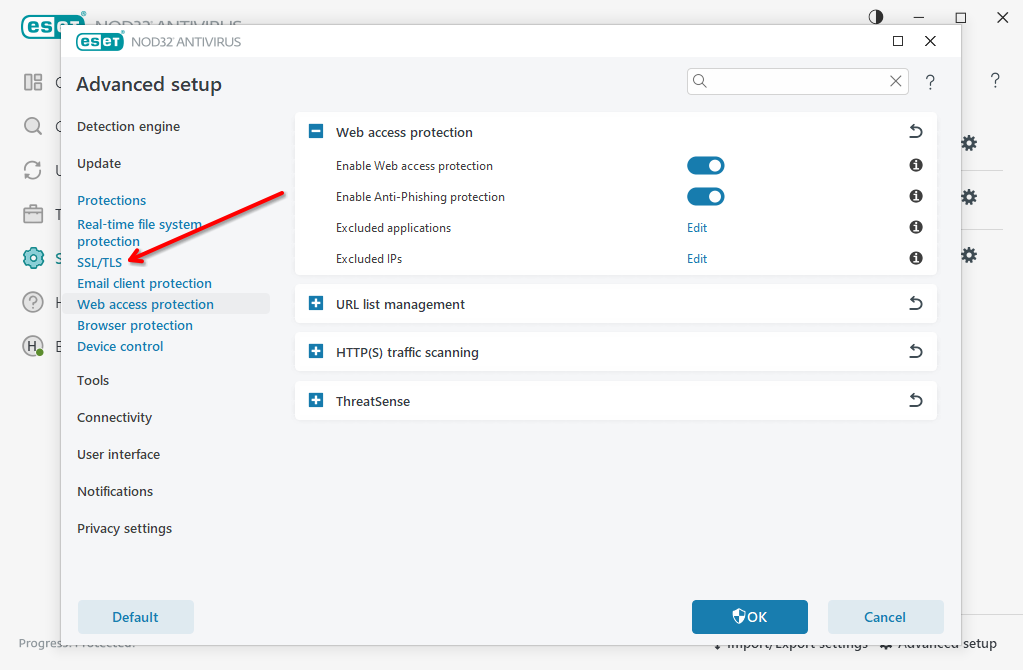
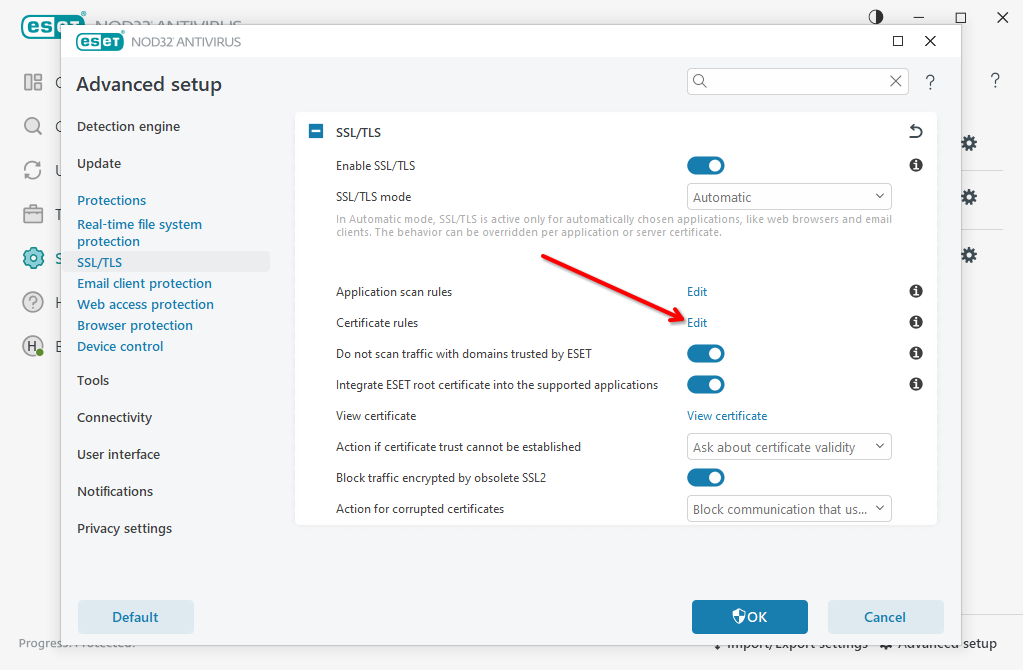
Navigate to SSL/TLS in sidebar
-
Edit Certificate rules
-
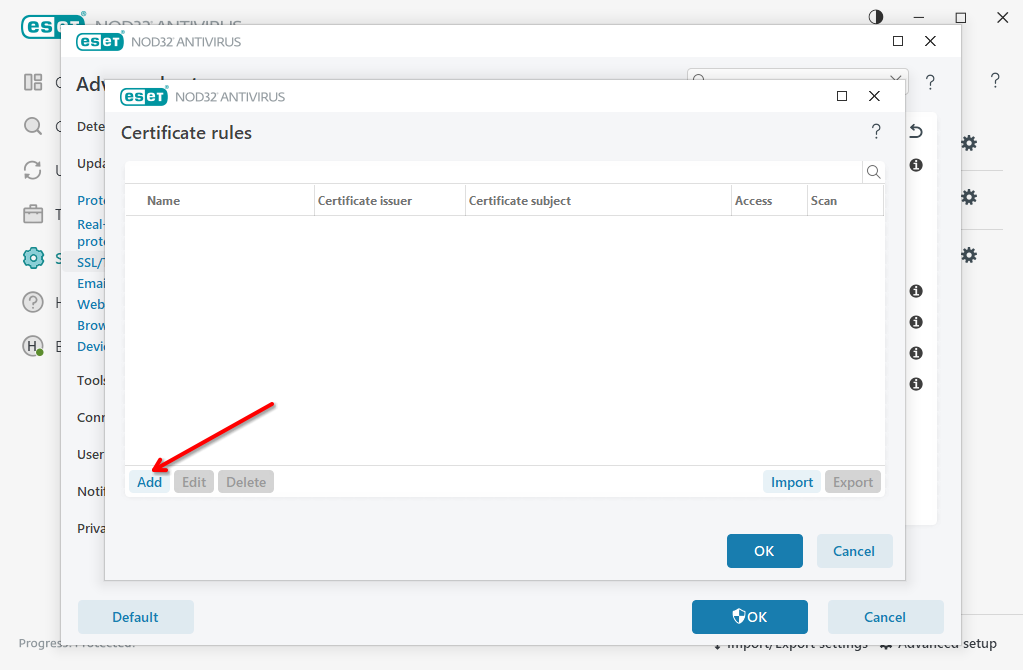
Add new rule
-
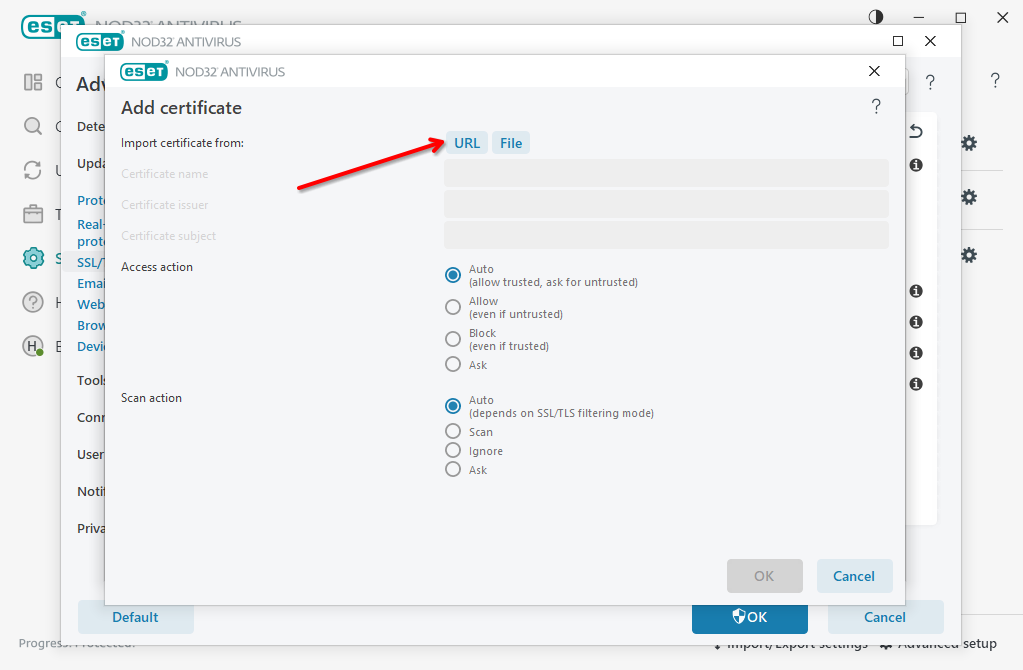
Click URL to fetch website certificate using built-in function. Alternatively, you could upload the certificate file manually
-
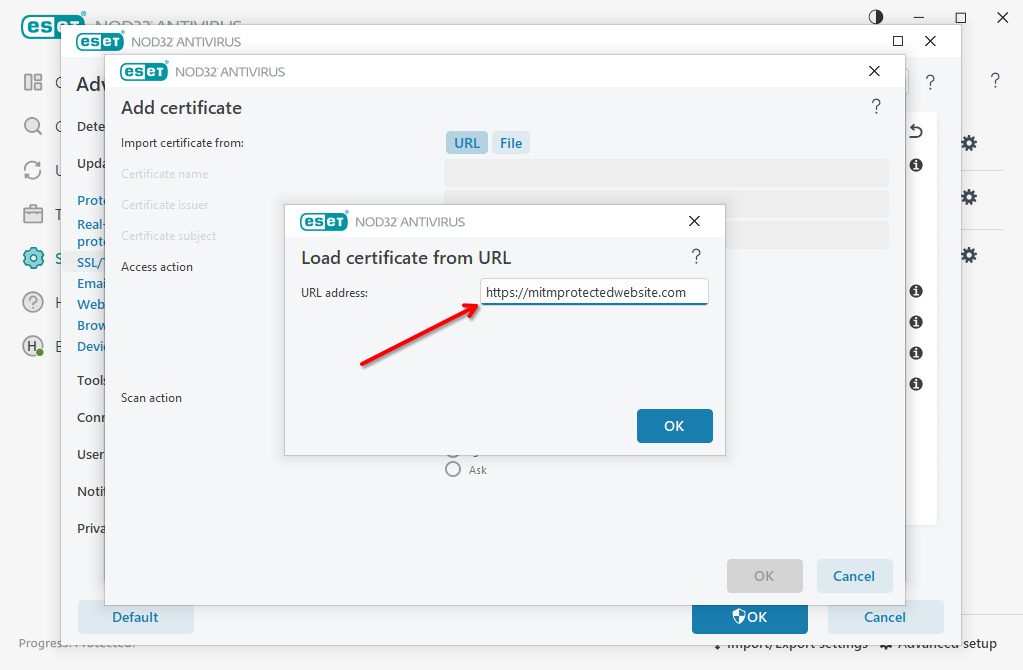
Enter website URL and click "OK"
-
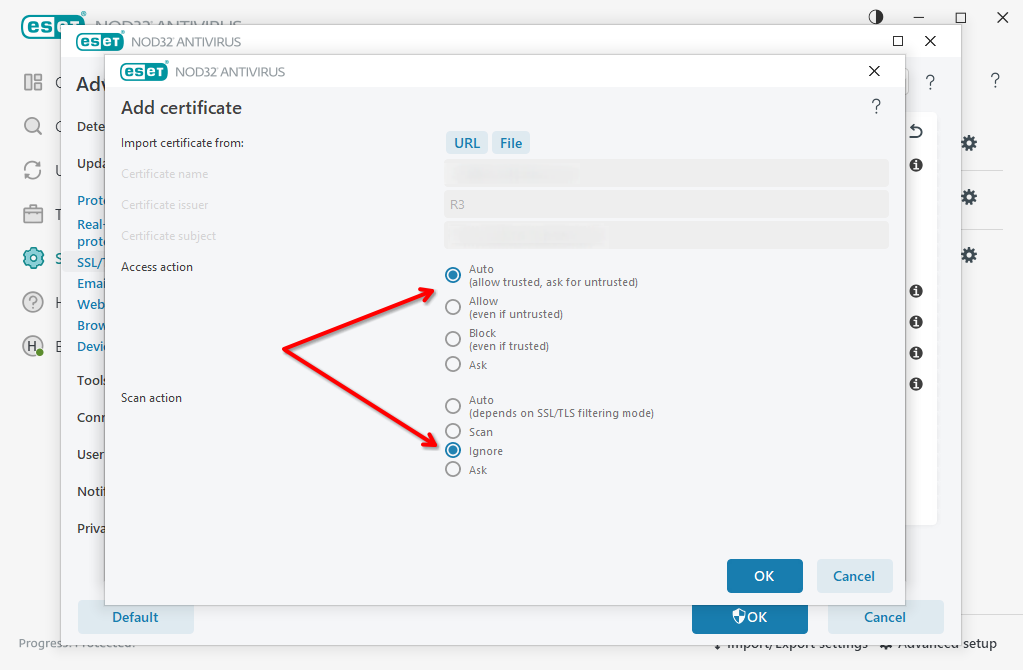
Set Access Action to Auto or Allow, set Scan Action to Ignore and click OK to save settings. Then click OK few more times to apply new settings.
-
Visit the website again
Disable ESET NOD32 MITM proxy:
-
Perform the steps 1-4 from the whitelisting guide above to get into MITM proxy settings
-
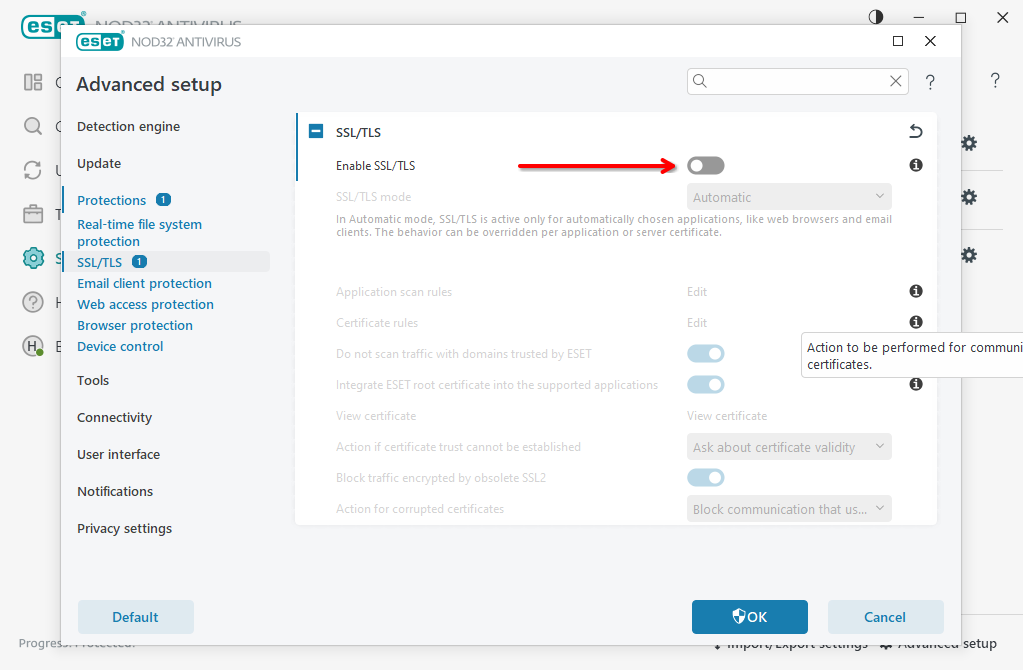
Switch off Enable SSL/TLS toggle and confirm changes pressing OK button
-
Visit protected website again
Avast (OS X):
-
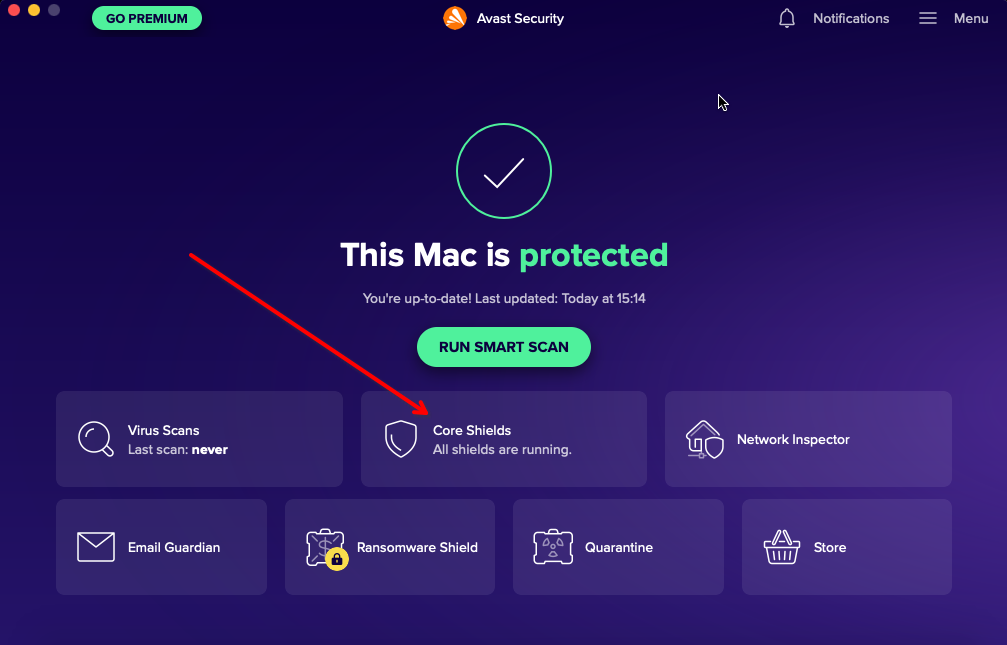
Open Avast dashboard and click Core Shields
-
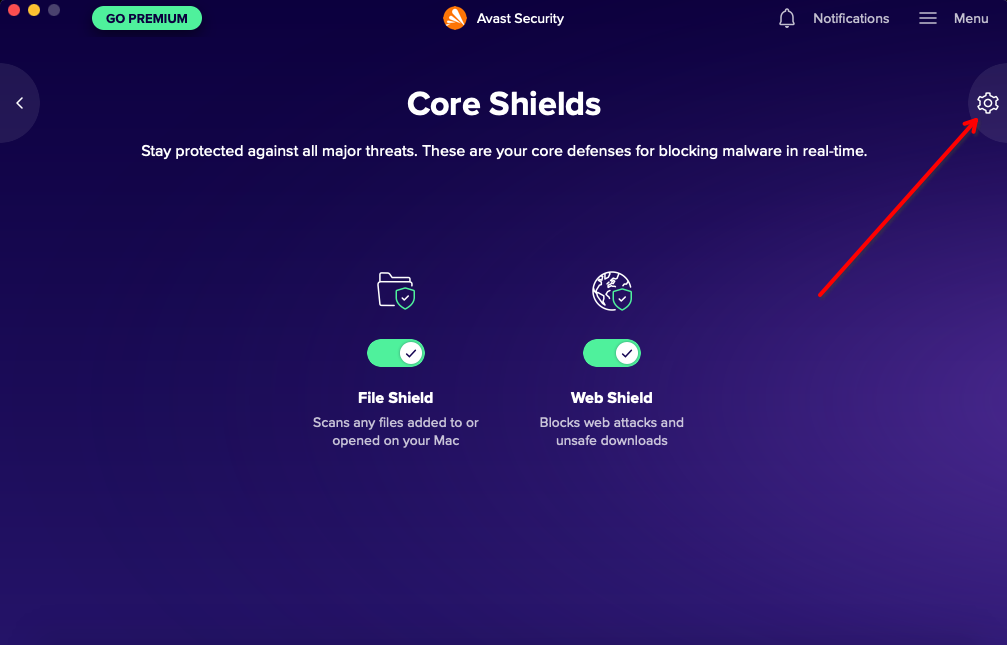
Click gear icon to open Preferences
-
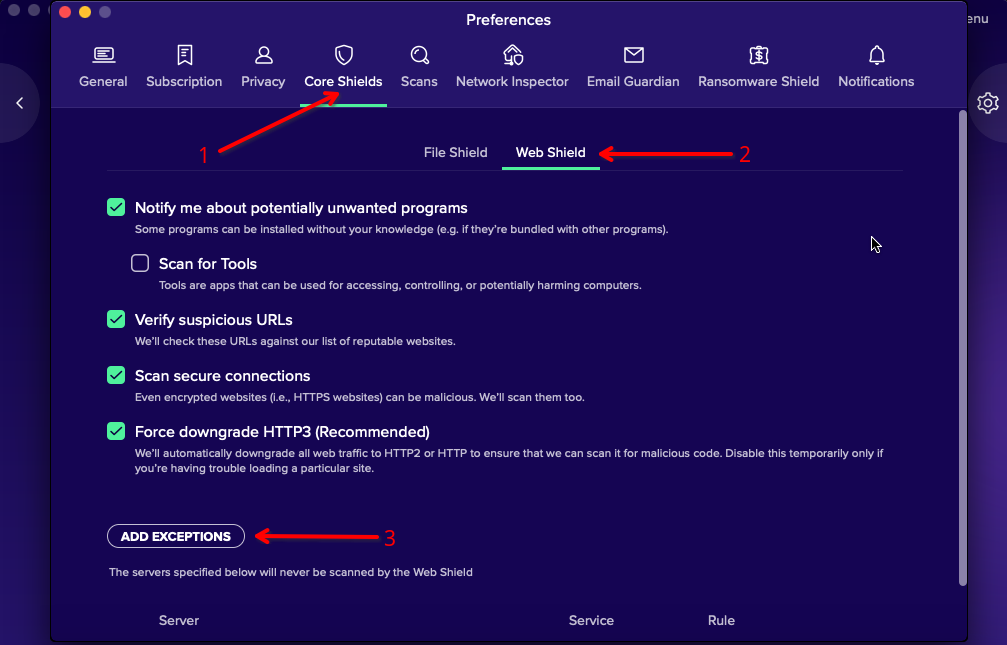
Select Core Shields from top menu, then open Web Shield tab, and click Add Exceptions in the bottom.
-
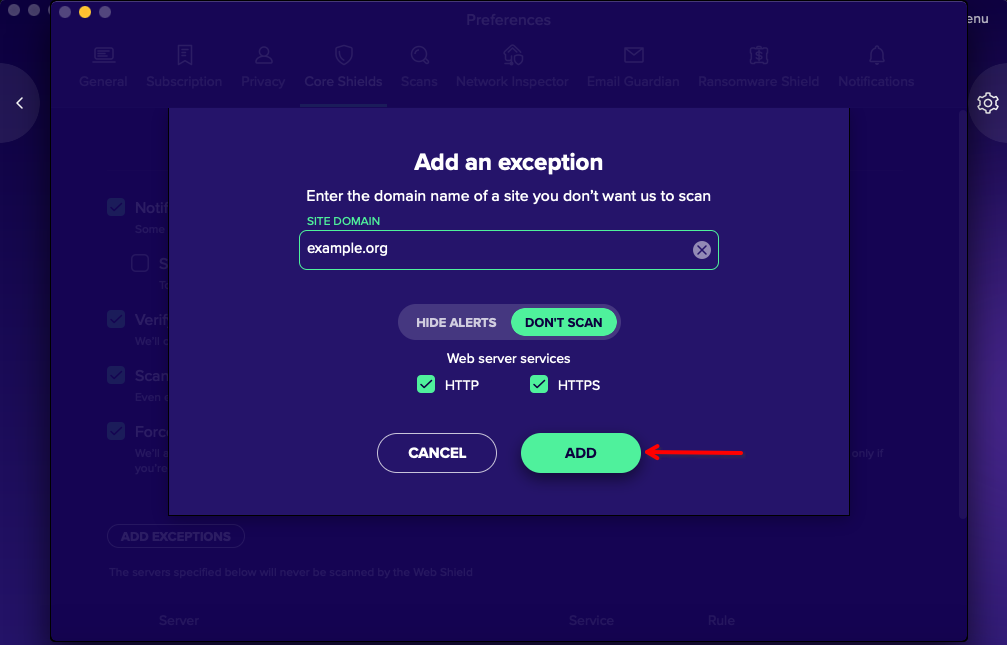
Enter your domain here and click Add
-
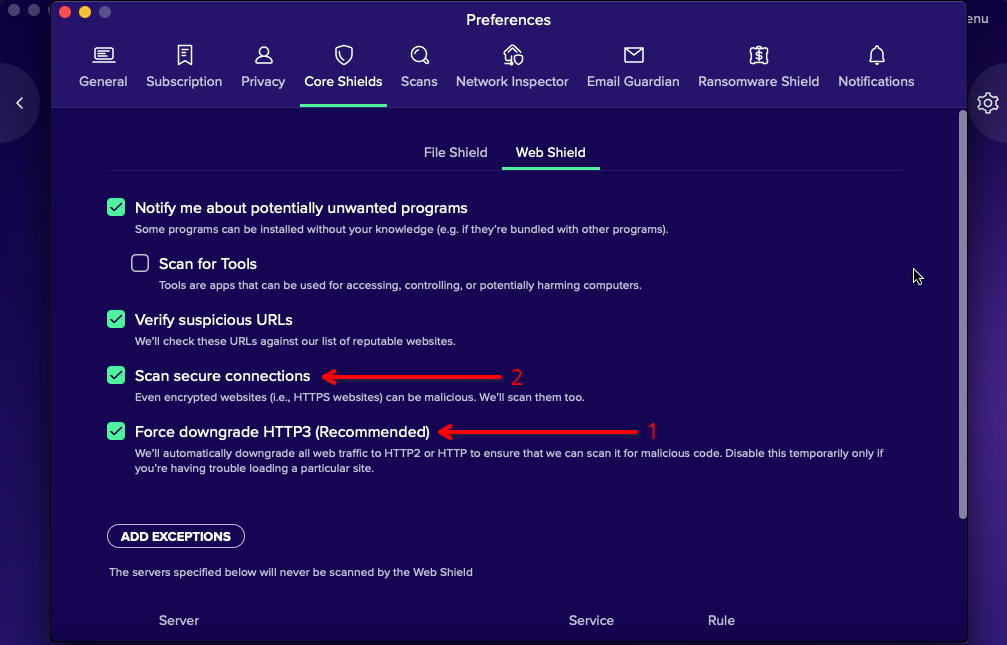
Optional. Optionally, you could enable HTTP3 (QUIC) protocol for better web surfing experience (1) or completely prevent Avast from scanning your encrypted traffic (2).
-
Visit protected website again
Partner program
Can I partner with BotGuard in my region?
We engage in many partnerships all around the world. Please contact us directly to find out more.
Does BotGuard provide hosting panel modules for partners?
Yes, we provide modules for WHM / cPanel, Plesk and ISPmanager. Please visit Hosting panels page for more information, or contact us directly if your panel is not listed here.
Can the client dashboard be white-labelled?
It is possible, but will be subject to special agreement. Please contact us directly to learn more.
How can I monitor request volumes from my end customers?
You will always have access to the number of visitor requests directly on your dashboard. Please keep in mind that website statistics are updated after every one thousand requests. This is done to improve system performance, so if site traffic is low, this may take some time.
Integrations
Plesk Plugin
What should I do if the Plesk API connection fails?
Symptom: A red warning banner is displayed, settings fail to load, and the module appears offline.
Check:
- Go to Settings → API Credentials in the module.
- Verify the API key is entered correctly.
- Log in to the Gatekeeper web dashboard and confirm the API key is valid and active.
- Test outbound connectivity from the server (for example, using a
curlrequest).
Resolution:
- Re-enter or replace the API key if it is incorrect or expired.
- If the key is valid, check for firewall rules, proxy settings, or network restrictions that may block outbound API calls.
- If connectivity is confirmed but the issue persists, contact Customer Support.
What should I do if the Events tab does not load?
Symptom: The loading spinner keeps spinning and never finishes, the table appears empty with no empty state, or an error message is displayed.
Check: Confirm that the API connection is working.
- Open the browser’s Developer Tools → Network tab.
- Locate the events API request and review its response status code and response body.
Resolution:
- If the request returns a 429 (rate limited), reduce the refresh frequency.
- For other error codes, escalate to Blackwall Customer Support and include the response body contents for further investigation.
What should I do if SSL sync fails?
Symptom: A Sync failed error is displayed, or the status does not update to Matching.
Check:
1. Confirm the domain’s DNS is pointing to Gatekeeper and not directly to the origin server.
2. Check the certificate expiry status in the Plesk SSL store.
3. Review the Gatekeeper web dashboard for any certificate-related errors on the domain.
Resolution:
- Correct any DNS misconfiguration and retry the sync.
- If the DNS is correct, investigate any certificate validation errors shown in the Gatekeeper platform.
- If no errors display, but the sync still fails, escalate to Blackwall Customer Support.
What should I do if my settings are not saving?
Symptom: No save confirmation appears, or changes are lost after refreshing the page.
Check: Confirm that the API connection is working.
- Open the browser’s Developer Tools > Console or Network tab.
- Look for errors from the settings API request:
- 403: Permission issue.
- 422: Validation error. See the response body for details.
- 500: Server error.
Resolution:
- Ensure that the API key has permission to modify settings.
- If you receive a 403 error, a different API key or plan upgrade may be required.
- For 422 errors, correct the invalid input based on the response details.
- For 500 errors, escalate to Blackwall Customer Support and include the full response body.
What should I do if the domain dropdown is empty?
Symptom: No domains are available to select, even though the API connection is working.
Check: Ensure that the domains are not only configured in Plesk DNS, but also registered in the associated Gatekeeper account. To do this, log in to the Gatekeeper web dashboard and review the domain list.
Resolution:
- Add the required domains in Gatekeeper.
- Once added, refresh the module and check the dropdown again.
What should I do if statistics are not displayed?
Symptom: Charts appear blank or show an error instead of displaying data.
Check: Make sure the domain has traffic within the selected time range. If no data appears, try expanding the time window (for example, to the last 30 days).
Resolution: If the domain has traffic but the charts still aren’t displaying correctly, open your browser’s developer console to check for any rendering errors. Then clear your browser cache and reload the page.
What should I do if the module does not appear in Plesk extensions?
Symptom: The extension is installed but not visible in the Plesk navigation.
Check: Confirm the extension is enabled (not just installed) in the Plesk Extensions Manager. Also review the Extensions Manager for any reported errors.
Resolution: Enable the extension in the Plesk Extensions Manager. If it’s already enabled but still not visible, check the PHP error logs for any issues.
Why are my rule changes not taking effect immediately?
Symptom: Rules are saved in the module, but traffic behavior does not change immediately.
Check: This is expected behavior and not a bug. Rule changes can take up to five minutes to propagate globally.
Resolution:
Wait up to five minutes after saving the rules, then monitor traffic to confirm that the changes have taken effect.
WHM/CPanel Plugin
Why does my website display a Not registered tag in the Blackwall plugin for cPanel?
Symptom:
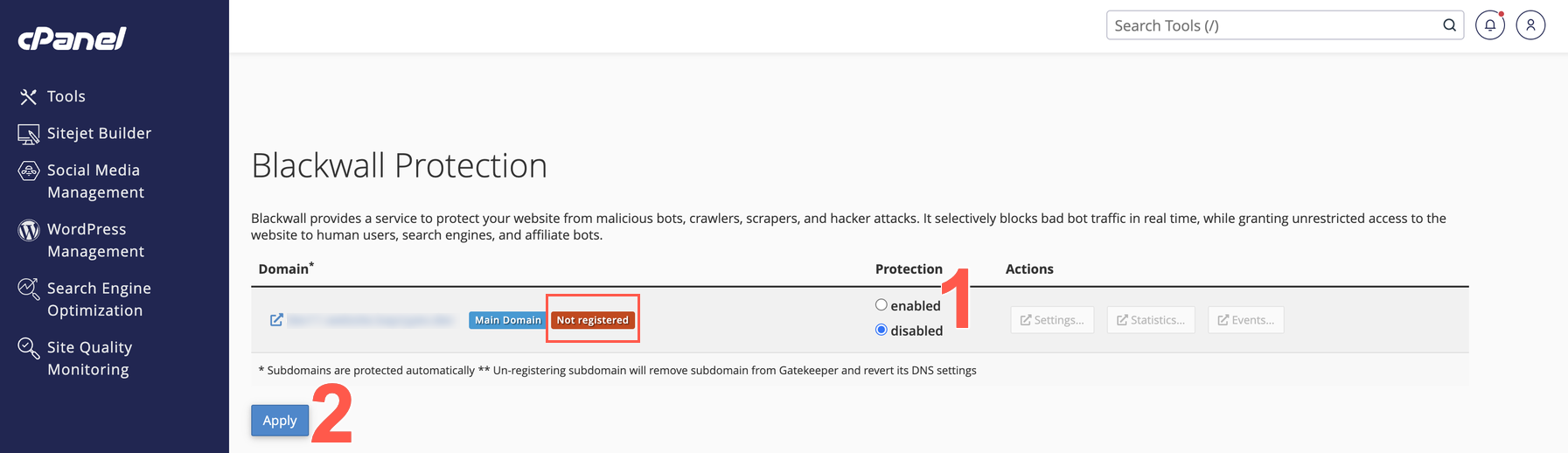
When you check a domain in the Blackwall plugin for cPanel, the domain displays a Not registered tag.
Check:
This usually happens when the domain has been removed from GateKeeper, but the website still exists in cPanel. The cPanel plugin can still detect the website, but Blackwall no longer has an active registration for it.
Resolution:
- Select the enabled radio button.
- Click Apply.
- Check that the Not registered tag no longer displays for your domain.
What should I do if the Events tab does not load?
Symptom: The loading spinner keeps spinning and never finishes, the table appears empty with no empty state, or an error message is displayed.
Check:
- Go to Settings → API Credentials in the module.
- Verify the API key is entered correctly.
- Log in to the Gatekeeper web dashboard and confirm the API key is valid and active.
- Test outbound connectivity from the server, for example, using a curl request.
Resolution:
- Re-enter or replace the API key if it is incorrect or expired.
- If the key is valid, check for firewall rules, proxy settings, or network restrictions that may block outbound API calls.
- If connectivity is confirmed but the issue persists, contact Customer Support.
What should I do if SSL sync fails?
Symptom: A Sync failed error is displayed, or the status does not update to Matching.
Check:
1. Confirm the domain’s DNS is pointing to Gatekeeper and not directly to the origin server.
2. Check the certificate expiry status in the Plesk SSL store.
3. Review the Gatekeeper web dashboard for any certificate-related errors on the domain.
Resolution:
- Correct any DNS misconfiguration and retry the sync.
- If the DNS is correct, investigate any certificate validation errors shown in the Gatekeeper platform.
- If no errors display, but the sync still fails, escalate to Blackwall Customer Support.
What should I do if my settings are not saving?
Symptom: No save confirmation appears, or changes are lost after refreshing the page.
Check: Confirm that the API connection is working.
- Open the browser’s Developer Tools > Console or Network tab.
- Look for errors from the settings API request:
- 403: Permission issue.
- 422: Validation error. See the response body for details.
- 500: Server error.
Resolution:
- Ensure that the API key has permission to modify settings.
- If you receive a 403 error, a different API key or plan upgrade may be required.
- For 422 errors, correct the invalid input based on the response details.
- For 500 errors, escalate to Blackwall Customer Support and include the full response body.
What should I do if statistics are not displayed?
Symptom: Charts appear blank or show an error instead of displaying data.
Check:
- Go to Settings → API Credentials in the module.
- Verify the API key is entered correctly.
- Log in to the Gatekeeper web dashboard and confirm the API key is valid and active.
- Test outbound connectivity from the server, for example, using a curl request.
Resolution:
- Re-enter or replace the API key if it is incorrect or expired.
- If the key is valid, check for firewall rules, proxy settings, or network restrictions that may block outbound API calls.
- If connectivity is confirmed but the issue persists, contact Customer Support.
Why are my rule changes not taking effect immediately?
Symptom: Rules are saved in the module, but traffic behavior does not change immediately.
Check: This is expected behavior and not a bug. Rule changes can take up to five minutes to propagate globally.
Resolution:
Wait up to five minutes after saving the rules, then monitor traffic to confirm that the changes have taken effect.