Subscriptions
The Subscriptions sub-tab provides a single location where you can view a summary of your invoice history and download full invoices. To access Subscriptions:
- Log in to your Blackwall account.
- In the Blackwall user interface (UI), from the main navigation menu bar click Profile.
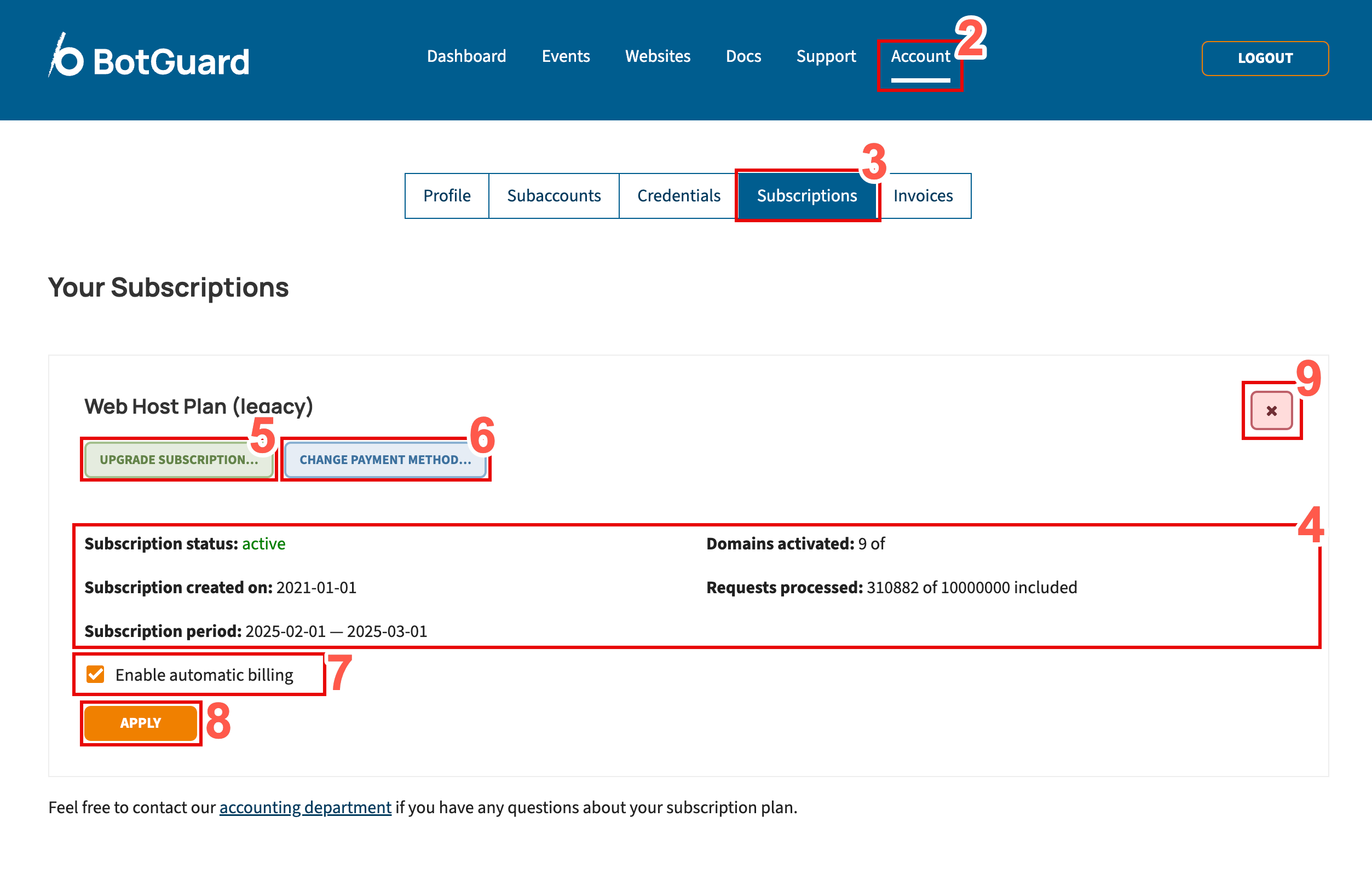
- From the sub-menu, click Subscriptions.
- View a summary of your account subscription, including:
- Subscription status - The current status of your account's subscription.
- Subscription created on - The date that your subscription started.
- Subscription period - The start and end dates for your subscription.
- Domains activated - The number of websites protected in your current account.
- Requests processed - Using the example displayed, 317914 requests were processed out of an account maximum of 10000000 included with this subscription.
- To upgrade your current subscription:
- Click UPGRADE SUBSCRIPTION.
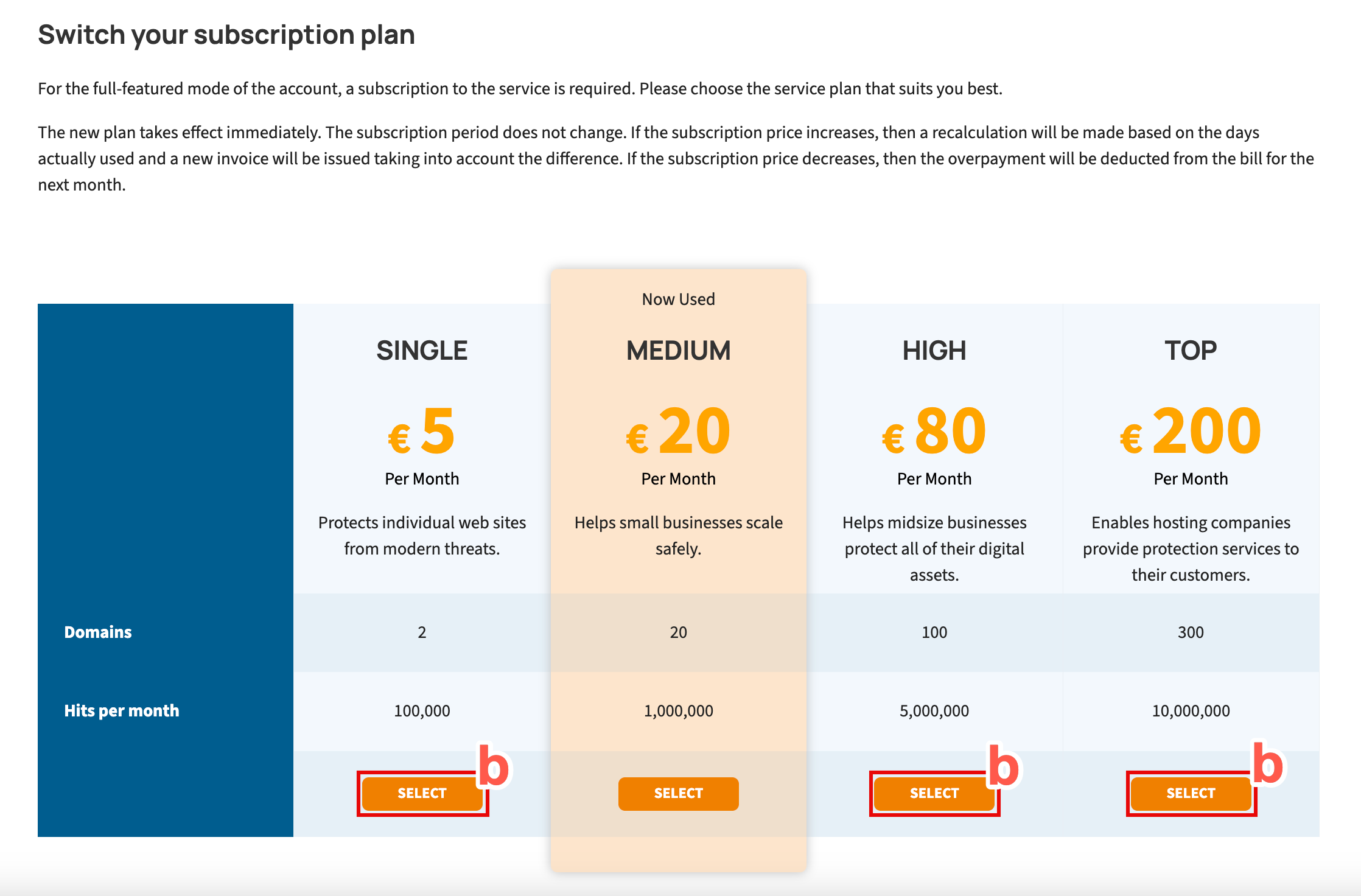
- From the page displayed, your existing subscription plan is highlighted. Click the Select button that corresponds with the subscription plan that best suits your needs.
- Check that the confirmation banner displays in the Subscriptions tab. This confirms that the subscription upgrade has executed successfully.
- To change your payment method:
- Click CHANGE YOUR PAYMENT METHOD.
- When the Stripe payment page displays, click + Add payment method.
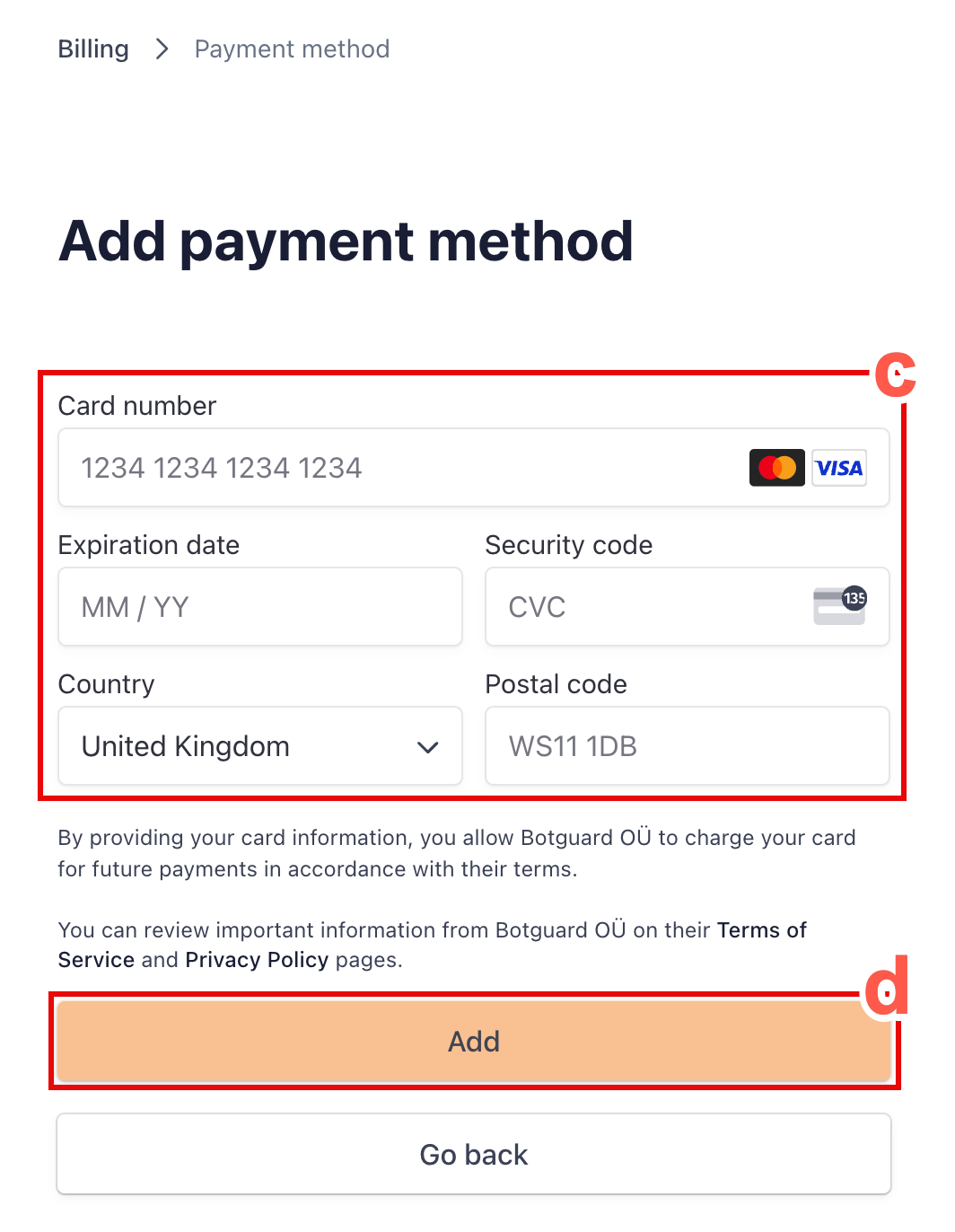
- Populate the card payment fields and payment address.
- Click Add to add the payment method.
- Place a check in the checkbox beside Enable automatic billing to automatically receive scheduled invoices. Remove the check from the checkbox to cancel automatic billing.
- Click APPLY to apply any changes made.
- Click Subscribe to subscribe to monthly reports for the domains protected in your account. Following subscription, on the last day of each month you will receive separate emails for each domain being protected in your account. Each email will contain a PDF report for the associated domain. These emails are sent to the email address associated with the account used to subscribe to the reports, but MSPs/Distributors can configure email forwarding rules for these emails if needed, to enable subaccount owners to receive the reports.
To cancel your current subscription level, click the X button and confirm when the confirmation prompt appears.